
Working in LanaTime
The modules, how they depend on each other, and the tools that work the same on every list page. Learn these once and every other tutorial becomes shorter.
The modules
PersonnelDepartments, positions, employees, resignations, access cards and employee documents.
DeviceAttendance terminals, areas, messages to devices, live punches, mobile app accounts and geofences.
Attendance: setupRules, timetables, shifts, schedules, holidays, leave types and outdoor types.
Attendance: approvalsLeave, manual punches, schedule changes, location punches and outdoor requests.
Attendance: reportsTransactions, Attendance Report, Statistics Report and Custom Report.
PayrollCurrency, formulas, salary structure, increments, allowances, deductions and the payroll report.
SystemUsers and roles, company and master settings, notifications, backup, API keys and logs.
Employee pagesWhat employees see when they sign in: their punches, requests and reports.
How the parts depend on each other
| This | needs this first | and is used by |
|---|---|---|
| Employee | Department (required); optionally position, shift, rule, holiday group, area | Everything else: devices, schedules, requests, reports, payroll |
| Device | Area | Punches (Transactions) |
| Shift | Timetables | Schedules, the employee record, Set Shift |
| Attendance result | Punches, schedule (or auto timetable), rule, holidays, approved leave and requests | Attendance Report, Statistics Report, dashboard figures, payroll, the calculated API |
| Payroll result | Attendance result (Att Calculate), payroll settings, formulas, allowances and deductions | Payroll Report |
Working with lists
Most menu items open a list. The tools above the list are the same everywhere; a page only shows the tools your role allows.
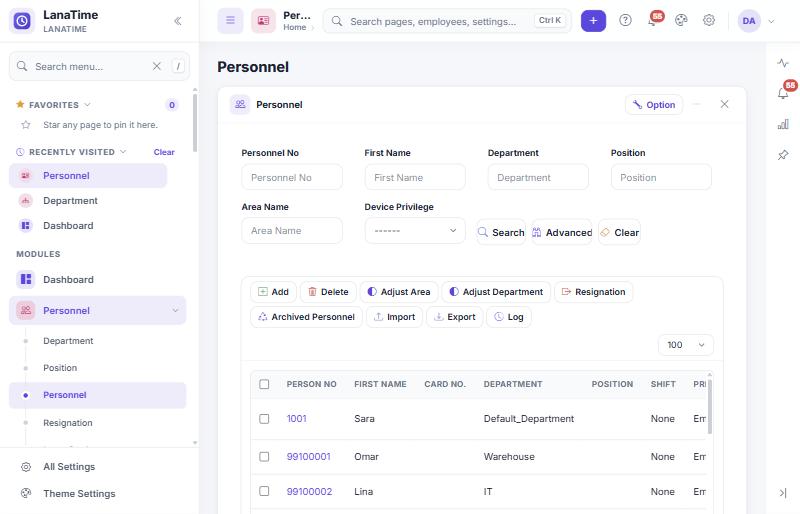
| Tool | How to use it |
|---|---|
| Filter fields | Type in one or more fields above the list (for example Personnel No or First Name) and select Search. Part of a word is enough. |
| Clear | Empties the filter fields and shows all records again. |
| Advanced | Opens Advanced Query for precise filters. See below. |
| Add | Opens the form for a new record. |
| Edit | Select the record's pencil button in the Actions column, or its underlined number or name. |
| Delete | Tick the records and select Delete, then confirm. If nothing is ticked LanaTime says "No object is selected for operation!". Records still in use (a department with employees, a timetable used by a shift) cannot be deleted. |
| Import | Loads records from an Excel .xlsx file. The import window shows a template example; download it, fill it in and upload it. Only .xlsx is accepted. |
| Export | Downloads the list. Choose the File Type (PDF, TXT, XLS or CSV) and the Export Method: all records (up to 10,000) or a range of record numbers. |
| Log | Shows who added, modified, deleted or exported records on this page and when. Filter by Username and Action Flag (Add, Modify, Delete, Export, Others). |
| Rows per page | The number at the right of the toolbar (for example 20, 50, 100). The arrows under the list (<< < 1 2 > >>) move between pages; the text at the right says how many records there are. |
| Option | The menu at the top right of a page card repeats the page's actions. |
Advanced Query
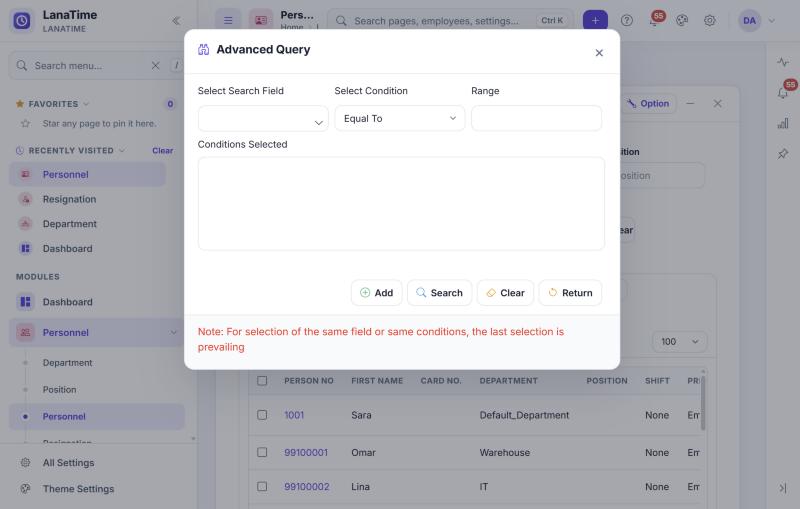
- Select Advanced on the list.
- Choose a Select Search Field, a Select Condition and type the Range (the value).
Conditions: Equal To, Contain, Larger Than, Larger Than Or Equal To, Smaller Than, Smaller Than Or Equal To, Meet Any, Equal To Null (the field is empty). - Select Add. The condition appears under Conditions Selected. Add more if needed.
- Select Search. Clear removes the conditions; Return closes the dialog.
Same field twice
If you add the same field or condition twice, only the last one is used.
Choosing departments and employees
Forms that act on many people at once (leave, manual punch, schedules, rules, payroll settings, private messages and others) share one chooser.
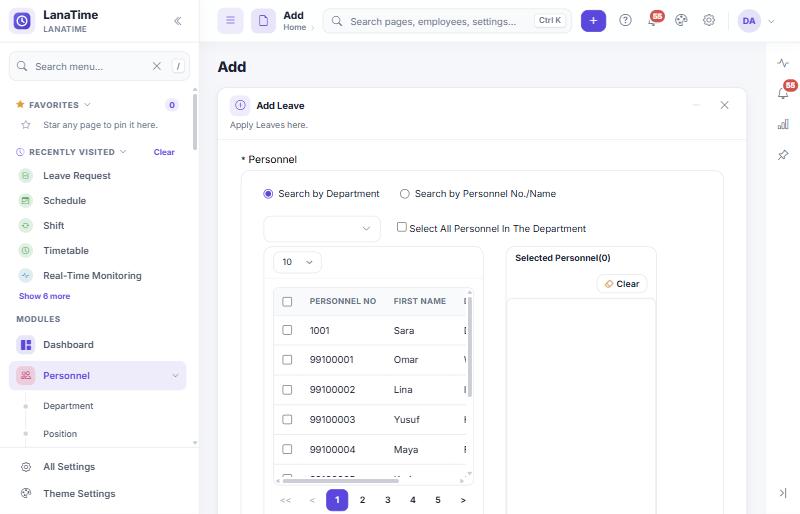
- Choose how to find people: Search by Department, Search by Personnel No./Name or (on some pages) Search by Area.
- For departments, open the field. In the tree, tick departments (All ticks every one; Include Subordinate Departments adds the departments below them) and select Ok.
- Tick people in the left grid; they move to Selected Personnel on the right, with a count. Tick Select All Personnel In The Department to take everyone in the chosen departments.
- To remove people, untick them on the right, or select Clear to empty the selection.
Filling in forms
- Fields marked with a red * are required. If one is empty when you save, the word Required appears under it and nothing is saved.
- Fields that accept only numbers show "Accepts only numbers." when you type something else.
- Date fields open a calendar. Reports use the format
yyyy-mm-dd(for example2026-10-22). - Save and New saves and opens an empty form; Ok saves and returns to the list; Cancel leaves without saving.
- Long forms (such as Add Personnel or Rule) are divided into sections; select a section's title to open or close it.
Glossary
- Punch
- One check-in or check-out record, from a device, the mobile app, or a manual punch.
- Device
- A fingerprint, face or card terminal that records punches and sends them to LanaTime.
- Area
- A group of devices, usually one site. Employees are linked to areas.
- Personnel No / Device ID
- The employee's number in LanaTime and on the device. They can be set to be the same (Master Settings).
- Timetable
- One working period: start, end, check-in and check-out windows, breaks and overtime options.
- Shift
- A repeating cycle (days or weeks) saying which timetable applies on which day.
- Schedule
- A shift given to employees from a start date to an end date. A temporary schedule overrides it on chosen days.
- Rule
- Settings that decide weekends and how lateness, early leave, missing punches, short days and overtime are counted.
- Calculate
- Recomputes attendance results for chosen employees and dates. Reports and payroll read these results.
- Approver
- The person who approves requests for a department (set with Set Approver).
- Cancel Audit
- Withdraws an approval or rejection; the request then shows Revoked.
- Leave type
- A kind of leave (Annual, Sick …) with its unit, limits and report symbol.
- Outdoor request
- A request to count time worked away from the office.
- Geofence
- A circle on the map (centre and distance in metres) where mobile punches are allowed.
- BS, WD, WH, OTH, DS
- Payroll formula signs: basic salary, work days, work hours, overtime hours, daily salary.