
Administrator guide
The System module and the settings only administrators should change. For the order of a new installation, follow First-time setup first.
Users, roles and permissions
Roles
Open: System › Role › Add. A role is a set of permissions. Give each role a Role Name and tick, on the tabs Personnel, Device, Attendance, Payroll and System, the pages and the actions on each page (for example Add, Import, Log, Export, Modify, Delete).
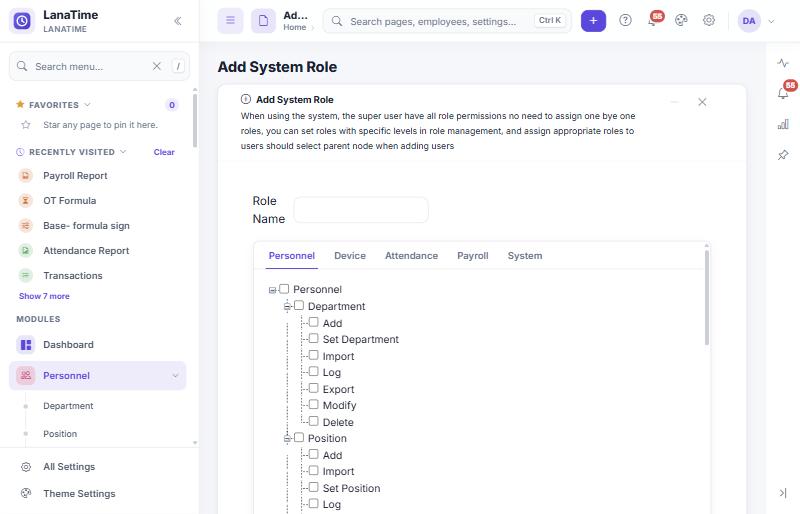
- A user only sees menu items their role allows, and only the toolbar buttons for the actions it allows.
- Opening a page by its address does not get around this: a page the role does not allow opens the Dashboard instead.
- A super user has every permission and does not need a role.
Users
Open: System › User › Add
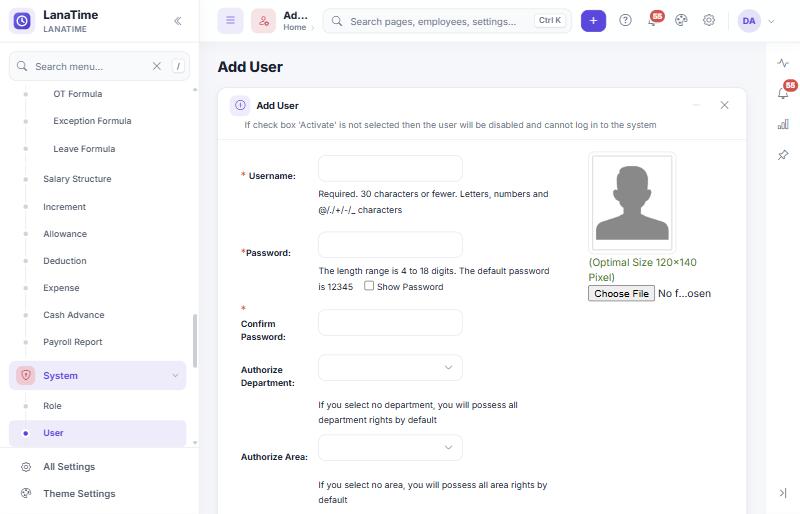
| Field | Meaning |
|---|---|
| Username * | Up to 30 characters: letters, numbers and @ . + - _. |
| Password *, Confirm Password * | At least 8 characters with letters and digits (the hint on the page still mentions the older 4-18 rule and a default of 12345; the 8-character rule is what LanaTime enforces). Reset Password appears when you edit a user. |
| Authorize Department | The departments this user may see and manage (with or without sub-departments). None selected = all departments. |
| Authorize Area | The areas (and their devices) this user may manage. None selected = all areas. |
| First Name, Last Name, E-mail Address | Shown in the user menu; the e-mail is used for notifications to this user. |
| Staff Status | Whether the user can sign in to this administration site. |
| Super Status | Gives the user all permissions, regardless of role. |
| Role | The role whose permissions apply. |
Give everyday users a role with only what they need. Every sign-in, lockout and refused input is recorded in the security audit, and every change in the System Log.
Passwords and sign-in protection
- New passwords need at least 8 characters with letters and digits. Weak existing passwords (for example 123456) must be changed at the next web sign-in.
- 5 failed attempts within 15 minutes block that name for a while.
- Employees reset their own password with a link sent to the e-mail on their record; the link works once and expires after 30 minutes.
- Passwords are stored as one-way hashes; nobody can read them back. To help a user who forgot their password, set a new one.
Company and master settings
Covered step by step in First-time setup: Company Setting and Master Settings.
Notifications (e-mail, SMS, WhatsApp)
LanaTime 7.5 sends notifications through a central notification service with four pages:
| Page | Use it to |
|---|---|
| Notification Settings | Switch notifications on, set the company name, LanaTime address, time zone, date and time format, default country code, retries and how long history is kept; set up the E-mail, SMS and WhatsApp channels and test them; switch Modules on or off. |
| Notification Templates | The text of each message, per event and channel. |
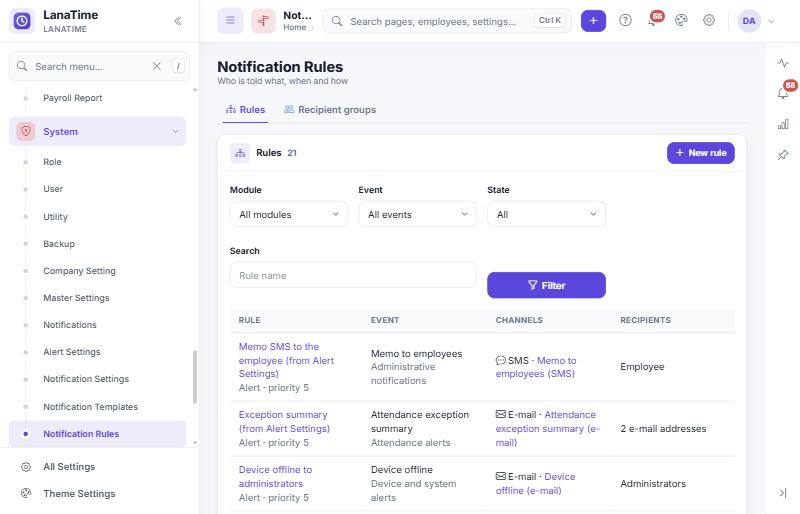
| Notification Rules | Who receives what, when and how: per event, the channels, recipients, conditions and delay. The Recipient groups tab manages groups of recipients. |
| Background Jobs | The queue: each message and scheduled job with its status (Scheduled, Queued, Processing, Completed, Failed, Retrying, Cancelled), attempts and error. |
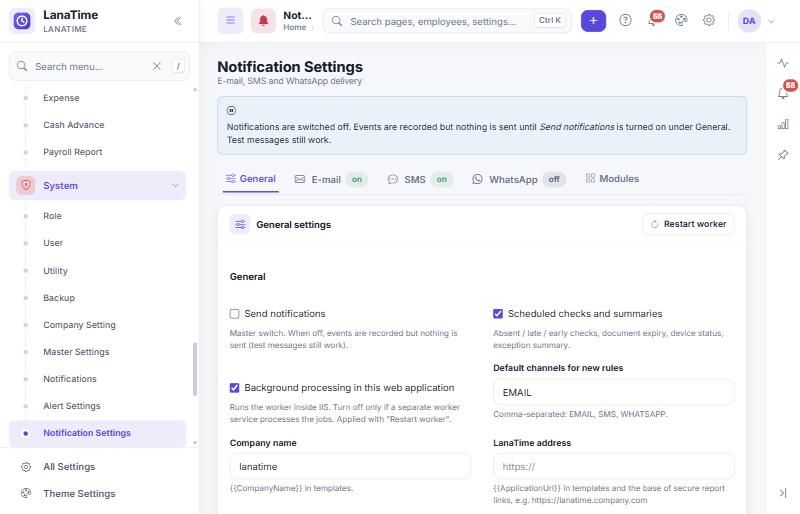
Set up notifications
- System › Notification Settings › General: enter the Company name, the LanaTime address (the web address people use, needed for links in messages and reports), the Time zone and formats. Save.
- E-mail tab: enter your mail server settings, select the test connection and send a test message. Do the same on the SMS and WhatsApp tabs if you use them (your SMS gateway or WhatsApp provider gives you the values).
- System › Notification Rules: open each rule you want (for example "leave request to approver", "decision to employee", "device offline to administrators"), check its channels and recipients, and make it active.
- Back on General, tick Send notifications and save.From now on, events send messages. Follow them in Background Jobs.
Events include: leave, manual punch, outdoor and schedule change requested, approved and rejected; employee absent, late arrival, early departure, punch recorded; attendance exception summary; document expiring; device offline; scheduled report; memo; background job failed.
Messages are sent by a background worker inside LanaTime (Background processing in this web application). If messages stay Queued, use Restart worker on Notification Settings and ask IT to keep the LanaTime application pool always running.
System › Alert Settings is the older page (mail server, alert thresholds for late, early and absent counts, SMS for punches, absence and memos). Its mail and SMS settings were taken over by the notification service; when notifications are switched on, its buttons queue messages through the service.
Mail passwords, SMS API keys and WhatsApp tokens are stored encrypted and are never shown again after saving. Do not paste them into e-mails, tickets or screenshots.
Scheduled Reports
Open: System › Scheduled Reports › New schedule.
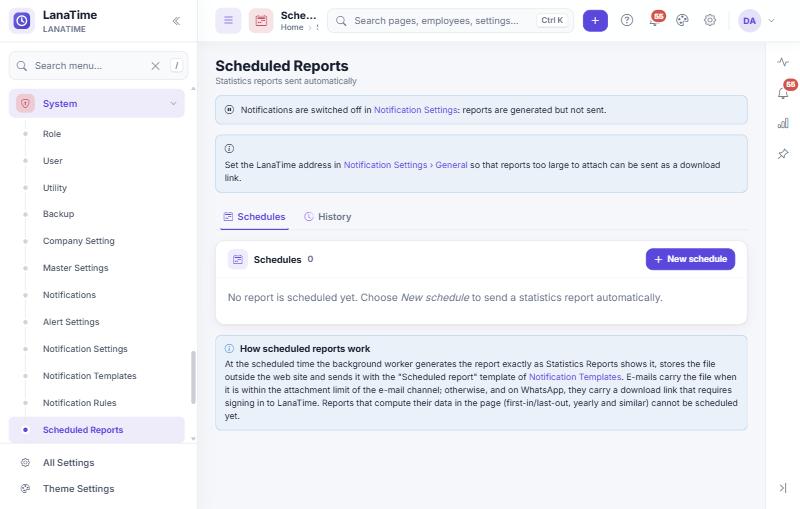
- Choose a Statistics report, the period (for example yesterday, last week, previous month), the employees (all, departments with sub-departments, or selected people), PDF or Excel, e-mail or WhatsApp, the recipients, and when to send (daily, weekly, monthly or once).
- The file is attached to the e-mail if it is small enough; otherwise, and on WhatsApp, the message has a download link that requires signing in.
- Reports that compute their data inside the page (first-in/last-out, yearly and similar) cannot be scheduled.
- History shows each run. Set the LanaTime address in Notification Settings first, or links cannot be created.
Backup
Open: System › Backup. The Database Name is shown; the Backup File Name is proposed from the date and time (only letters, digits, _ and -). Create Backup writes the backup on the server (folder BackupDB of the LanaTime site); Download Backup downloads it.
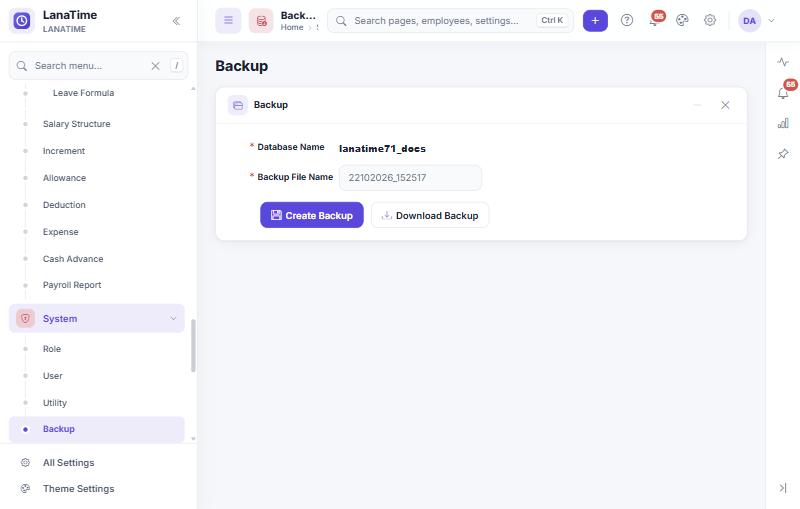
Download backups or have IT copy them to another place regularly. Take a backup before data cleaning, large imports and upgrades.
Licence, Utility and About
- System › About: licence details per option: status, activation status, expiry, count, occupied and remaining (for example how many devices or employees you may add).
- System › Utility: activation of licence options (Enter The Hashcode your supplier gives you).
- Some features need their own licence option, for example API access.
API Integration
Open: System › API Integration. Lets another system (for example an ERP or payroll package) read attendance data with a key.
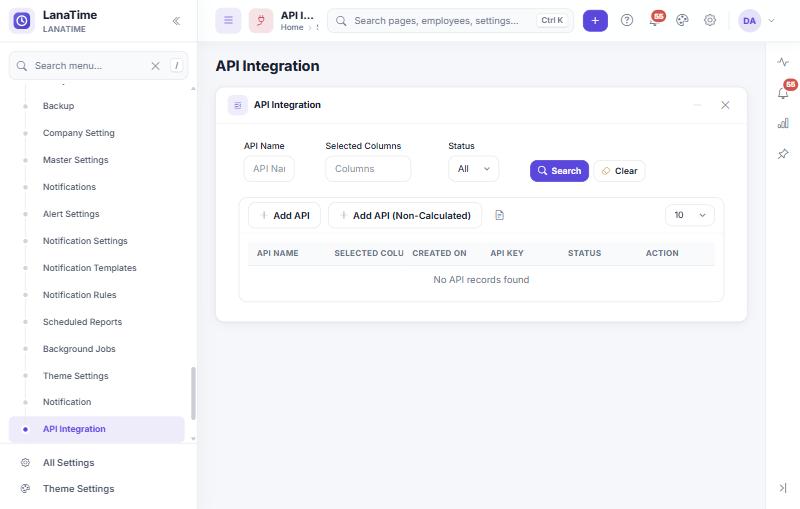
- Add API creates a key that returns calculated attendance results (the same results as the reports; calculate first).
- Add API (Non-Calculated) creates a key that returns raw punches.
- For each key choose an API Name, the Selected Columns it may return, a description and whether it is Active. The list shows the key; select it to see and copy the full key.
The other system calls (replace the parts in capitals):
GET https://YOUR-LANATIME-ADDRESS/api/CustomApi/GetData?apiKey=YOUR-API-KEY&startDate=2026-10-01&endDate=2026-10-31Anyone with the key can read the columns it allows. Give each system its own key, use HTTPS, and switch a key off (Active) when it is no longer needed. The API returns nothing when the API licence option has expired.
Logs and audit
| Where | What |
|---|---|
| System › Log | Changes made by users across LanaTime: user, role, action (Add, Modify, Delete, Export, Login, Others), time, object type and description. Filter and export. |
| Log button on each page | The same history for one page. |
| Notifications page (System › Notification) | Recent system alerts. |
| Application log (server) | Errors, warnings and start/stop of LanaTime in daily files App_Data\Logs\lanatime-yyyyMMdd.log on the server, kept 30 days. Each entry has the time, user, page and a request id. IT reads these files when you report a problem. |
| Security audit (database) | Sign-ins, lockouts, refused input and password changes, with the same request id. |
Data Cleaning
System › Data Cleaning removes old data: choose Clean Up Data Before (a date) and Choose Items To Clean; Cleaning Results shows what was removed.
Cleaned data is deleted from the database. Take and keep a backup first, and never clean periods whose payroll or attendance may still be checked.
Theme and appearance
Each user chooses their own look in Theme Settings (Alt + T): light or dark mode, accent colour, density and background. System › Theme Settings is the older page with fixed colour schemes.
Calculation engine settings (server)
These are set by IT in the LanaTime configuration file (Web.config, appSettings) and apply to Attendance Report, Statistics Report and Payroll Report separately.
| Setting | Values | Effect |
|---|---|---|
LtAttStatsEngine, LtStatsReportsEngine, LtPayrollEngine | legacy (default) / optimized | optimized calculates the same results with far fewer database queries. |
LtAttStatsCorrections, LtStatsReportsCorrections, LtPayrollCorrections | true (default) / false | With the optimized engine: fixes the nth-Saturday weekend, holiday matching, half days on temporary schedules and a value that leaked between days. Results of recalculated past periods can change; agree with HR and payroll first. |
Other server settings in the same file: password length (LtPasswordMinLength), forced change of weak passwords (LtForceWeakPasswordChange), sign-in lockout (LtLoginMaxFailures, LtLoginWindowMinutes), reset link lifetime (LtPasswordResetMinutes) and the application log (LtLogDirectory, LtLogLevel, LtLogRetentionDays, LtLogMaxFileMB).
Related: First-time setup · Troubleshooting · Screen inventory