
Devices
Attendance devices (fingerprint, face and card terminals) record punches and send them to LanaTime. This module registers the devices, keeps their employee lists in step with LanaTime and shows what they send.
How devices talk to LanaTime
The devices do not talk to the LanaTime web pages directly. They connect over the network to the LanaTime device service, a separate web site installed next to LanaTime (in the installation folder lanaservice\iclock). The device sends its punches to that service as they happen ("push" or ADMS communication) and regularly asks it for waiting commands. LanaTime stores the punches and shows them under Attendance › Transactions.
The device service's program code is not part of the LanaTime 7.5 source used for this guide. What this page says about the device side comes from its configuration, from the LanaTime pages that call it, and from the LanaTime device manual (2023). The exact menus on the device depend on its model and firmware.
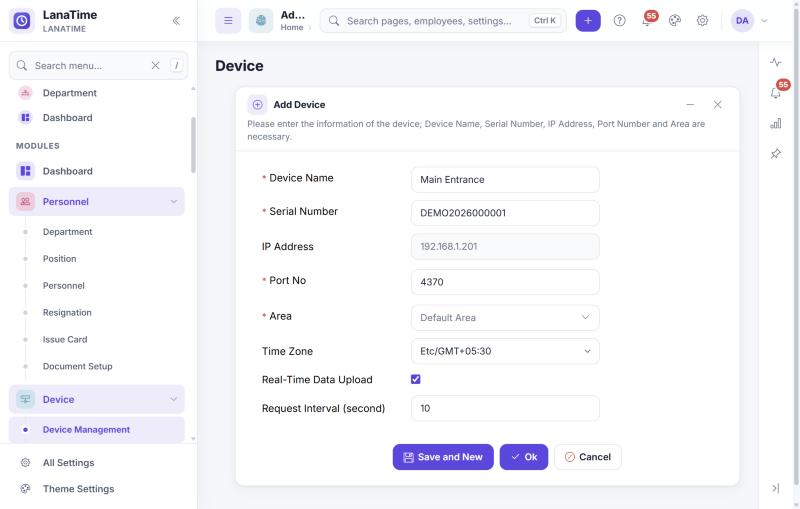
Add a device
Open: Device › Device Management › Add (or + › Device Management)
| Field | What to enter |
|---|---|
| Device Name * | A name people recognise, for example Main Entrance. |
| Serial Number * | The device's serial number, exactly as the device shows it (usually under System › Device information). This is how LanaTime recognises the device. |
| IP Address | Filled in by the device when it connects; you cannot type it here. |
| Port No * | The device's communication port. 4370 is proposed. |
| Area * | The area (site) the device belongs to. Employees of this area are sent to it. |
| Time Zone | The time zone of the place where the device hangs. Required: if you leave it unset LanaTime asks you to select one. |
| Real-Time Data Upload | Ticked: punches are sent as they happen. If you untick it, two fields appear: a fixed transmission time and a refresh interval in minutes. |
| Request Interval (second) | How often the device asks for commands. 10 is proposed. |
You can add only as many devices as your licence allows. If Ok does not add the device, check System › About: it shows the licensed count, how many are occupied and how many remain.
Connect a device to LanaTime
After adding the device in LanaTime, set it up on the device itself. On ZKTeco-style terminals the steps from the LanaTime device manual are:
- Open the device's main menu and choose COMM. (communication).
- Under Ethernet, enter the device's IP address, subnet mask, gateway and DNS for your network, and the TCP COMM. port (normally 4370).
- Under ADMS (cloud server setting), enter the server address and server port of the LanaTime device service. Your administrator or supplier knows these values.
- Save and leave the menu.The device connects on its own. In Device › Device Management its status, model, firmware and user, finger, face and transaction counts appear.
- The device must support push (ADMS) communication.
- The device and the server must reach each other over the network (same LAN or routed; firewalls must allow the service's port).
- The serial number in LanaTime must match the device.
The device list
Columns: Device Name, Serial Number, Area Name, IP Address, Status, Device Model, Firmware Version, User Count, Finger Count, Face Count, Transaction Count and Last Activity. Toolbar: Add, Delete, Device Maintenance, Export, Log, Punching Employees, Device Employees and Block List.
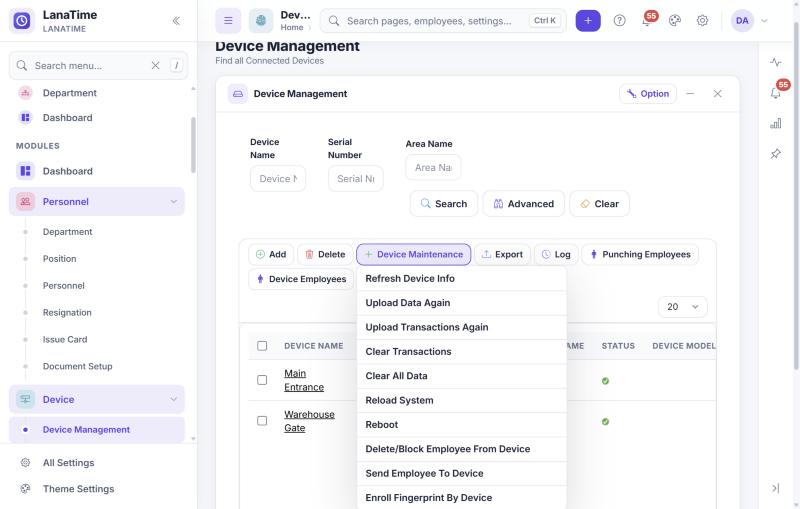
Device Maintenance
Tick one or more devices, then point at Device Maintenance and choose a command. Commands are queued; the device carries them out the next time it asks for commands. Follow them in Commands Monitoring.
| Command | What it does |
|---|---|
| Refresh Device Info | Asks the device for its current information (model, firmware, counts). |
| Upload Data Again | Asks the device to send its user data again. |
| Upload Transactions Again | Asks the device to send its punches again. Use it when punches seem to be missing. |
| Clear Transactions | Deletes the punches stored on the device. Only after you have confirmed they are in LanaTime. |
| Clear All Data | Deletes all data on the device, including users and fingerprints. |
| Reload System, Reboot | Restart the device's software or the device. |
| Send Employee To Device | Sends the chosen employees' details to the device so they can punch there. Fingerprints and photos already stored in LanaTime are sent as biometric data (see Biometric Details). |
| Delete/Block Employee From Device | Removes chosen employees from the device, or blocks them; blocked people are listed under Block List. |
| Enroll Fingerprint By Device | Starts fingerprint enrolment for a chosen employee and finger on the device. |
Data deleted on the device is gone. Before clearing, check in Attendance › Transactions that the punches up to today are in LanaTime, and take a LanaTime backup.
Monitoring
| Page | Shows |
|---|---|
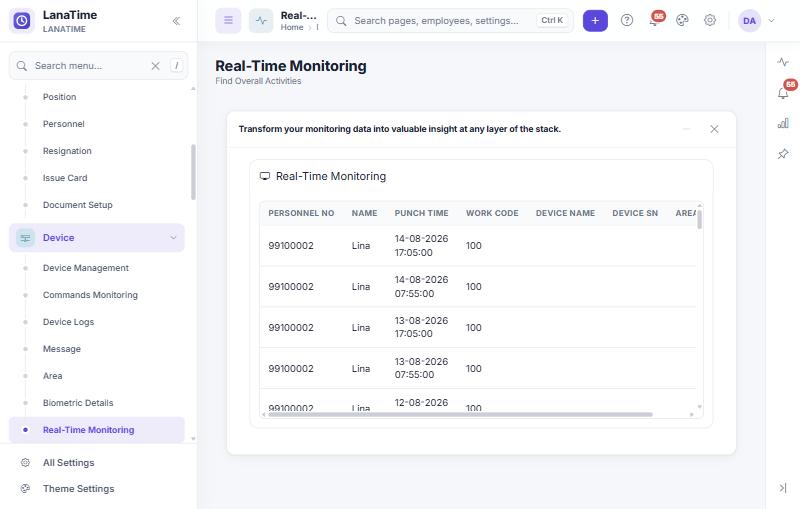
| Real-Time Monitoring | Punches as they arrive: Personnel No, Name, Punch Time, Work Code, Device Name, Device SN, Area Name. The page refreshes by itself. |
| Commands Monitoring | Commands sent to devices: ID, Device SN, CMD (the command), Date, SendOutTime, ResponseTime, Flag, Area and Status. A command without a ResponseTime has not been carried out yet. |
| Device Logs | Messages the devices sent (Data from Device): ID, Content, Date, for example "Device uploaded N user data". |
| Biometric Details | Per employee: card, password, finger, face, palm and photo templates, area and department. Upload BioPhoto adds a photo for face devices. |
Areas
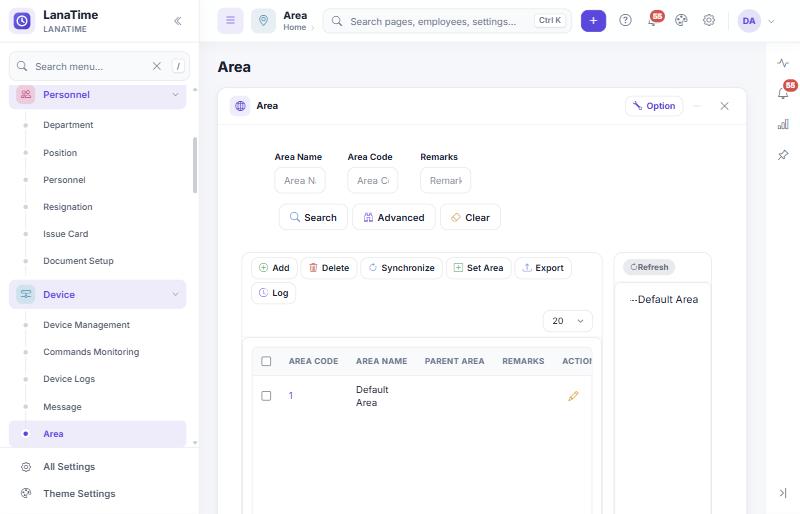
Open: Device › Area. Add areas with Area Code, Area Name, Parent Area and Remarks. Synchronize brings the devices of the area in step with LanaTime; Set Area assigns employees to an area. A new installation contains Default Area.
Messages on device screens
Open: Device › Message
- Public Message: shown to everyone on the chosen devices. Fields: Device, Start Time, Message Duration (min), Short Message Content.
- Private Message: shown to chosen employees when they punch. Choose the device, the personnel (chooser) and the same fields.
- Send Message to Device sends messages that were saved but not yet sent; the list shows the Send Status.
Mobile app accounts and geofences
- MobileApp Accounts (Device › MobileApp Accounts): who may use the LanaTime mobile app, with App Status, App Role, Login Time, Last Active and Client Category. Set Mobile App sets App Status, Version (Lite or Pro), Role (Employee or Administrator) and Authentication for chosen employees; Enable/Disable switch accounts on or off.
- GeoFence (Device › GeoFence): places where mobile punches are allowed. Add asks for a GeoFencing Name, Description, Distance (Meters) and the location (Paste Coordinates accepts coordinates copied from a map). Set GeoFence links employees to a geofence.
Punches from a USB stick
If a device cannot reach the server, export its punches to a USB stick on the device and load them with U Disk Import on Attendance › Transactions.
Diagnosing device problems
| Symptom | Check |
|---|---|
| Device never appears online | Serial number spelled exactly as on the device; ADMS server address and port on the device; network and firewall between device and server; the device service is running. |
| Device was online, now silent | Last Activity in the device list; power and network at the device; Commands Monitoring for commands without a response. |
| Employee cannot punch ("not registered") | The employee's area matches the device's area; send the employee to the device; check Block List. |
| Punches missing in LanaTime | Transactions for that person and day; Upload Transactions Again; the Device ID on the employee matches the user number on the device. |
| Times are wrong by whole hours | The device's Time Zone in LanaTime and the clock on the device. |
More in Troubleshooting.
Related: Add an employee · Transactions · Mobile app