
Welcome to LanaTime 7.5
LanaTime records when your employees arrive and leave, turns those punches into attendance, leave, overtime and absence, and calculates payroll from the result. This Help Centre teaches you to use it step by step, even if you have never used an attendance system before.
What LanaTime does
LanaTime connects four kinds of information:
- Punches. A punch is one record of a person checking in or out. Punches come from fingerprint, face or card terminals (the devices), from the LanaTime mobile app, or are added by hand after approval.
- Working time rules. Timetables say when a working day starts and ends, shifts say which timetable applies on which day, and schedules give a shift to employees. Rules say how lateness, early leaving, absence and overtime are counted.
- Exceptions. Leave, holidays, weekends, outdoor work and manual punches, usually approved by a manager.
- Results. When you select Calculate, LanaTime combines the three and stores the attendance of every person and day. Reports and payroll read these results.
Reports show the calculated result. When punches, leave, schedules or rules change, run Calculate again for those people and dates. See When to recalculate.
Who uses which part
| Role | Typical tasks | Start with |
|---|---|---|
| Administrator | Install and configure LanaTime, users and roles, devices, notifications, backups | First-time setup, Administrator guide |
| HR officer | Departments and employees, timetables and shifts, leave, approvals, attendance reports | Personnel, Timetables, shifts and rules |
| Supervisor / approver | Approve or reject leave, manual punches and other requests; check the team's attendance | Leave, requests and approvals |
| Payroll officer | Salary settings, formulas, allowances and deductions, payroll report | Payroll |
| Employee | See own punches and attendance, request leave, missed punches, schedule changes and outdoor work | Employee self-service |
Which menu items a person sees depends on their role, which an administrator sets under System › Role. If a page in this guide is missing from your menu, ask your administrator to add it to your role.
What you need
- A web browser. Use a current version of Microsoft Edge, Google Chrome, Mozilla Firefox or Safari. LanaTime 7.5 uses modern page layout features that older browsers do not support (Chrome and Edge 105 or later, Firefox 121 or later, Safari 15.4 or later). Internet Explorer does not work.
- The LanaTime address. Your administrator gives you the web address of your LanaTime site, for example
http://lanatime.yourcompany.local/. It works on the company network and, if your company allows it, from outside. - Your sign-in details. Administrators and HR staff receive a username. Employees sign in with their personnel number.
- A screen at least 1024 pixels wide for daily work. LanaTime also works on tablets and phones; on narrow screens the menu slides in from the left.
Installing LanaTime on a server (Windows, IIS and SQL Server) and activating the licence is done by your supplier or IT team and is not covered by this user guide. The Administrator guide lists the settings an administrator manages after installation.
Sign in
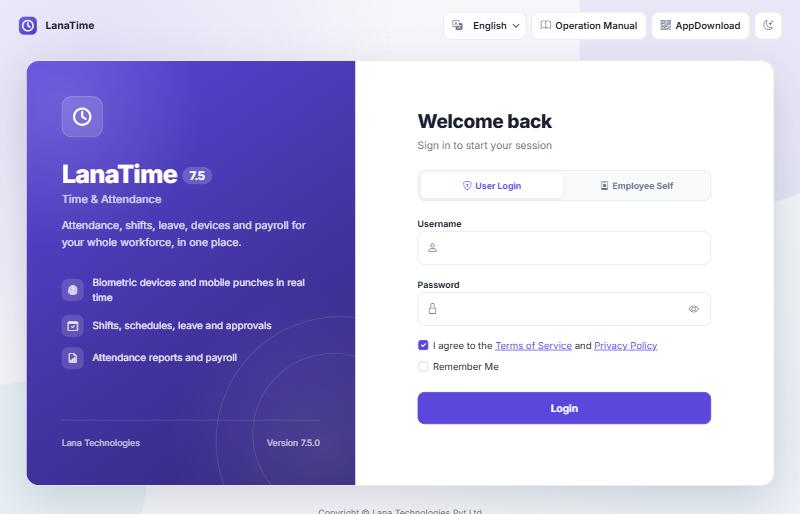
- Open the LanaTime address in your browser.
- Choose your tab:
- User Login if your administrator gave you a username.
- Employee Self if you are an employee signing in with your personnel number.
- Type your Username and Password. The eye button at the end of the password field shows what you typed.
- On the User Login tab, keep I agree to the Terms of Service and Privacy Policy ticked. Tick Remember Me to have this computer remember your username. LanaTime never stores your password in the browser.
- Select Login.Staff open on the Dashboard; employees open on their Manual Punch page.
If your password is weak (for example a factory default such as 123456), LanaTime asks you to set a new one before you continue. A password must have at least 8 characters and contain both letters and digits.
After repeated failed attempts, sign-in for that username is blocked for a short time (by default 5 failures within 15 minutes). Wait and try again, or ask your administrator. Employees can use Forget Password? on the Employee Self tab; see Forgotten password.
Language and light/dark mode
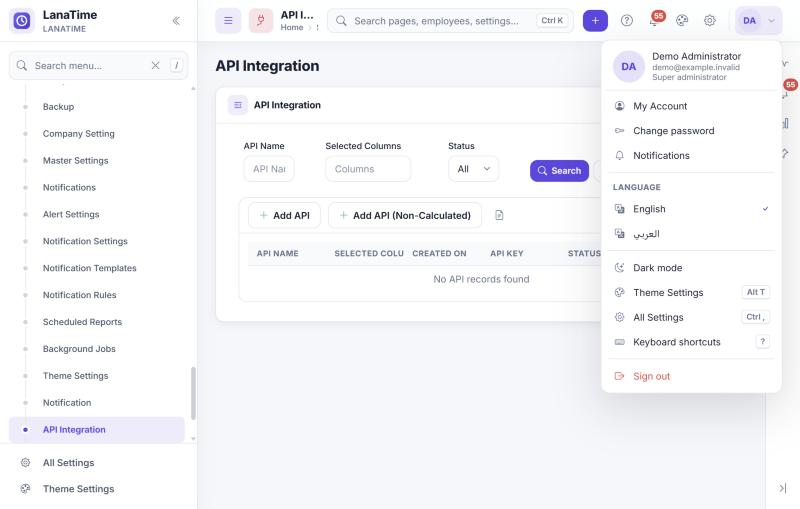
- Choose English or العربي (Arabic) from the language list at the top of the sign-in page, or later from your user menu. Arabic switches the screen to right-to-left.
- The moon/sun button at the top right of the sign-in page switches between light and dark. After signing in, use Dark mode in your user menu or Theme Settings (Alt + T).
Sign out
Open your initials at the top right and select Sign out. Always sign out on a shared computer. Your session also ends after a period without activity and when the server is restarted; if that happens, sign in again.
The LanaTime screen
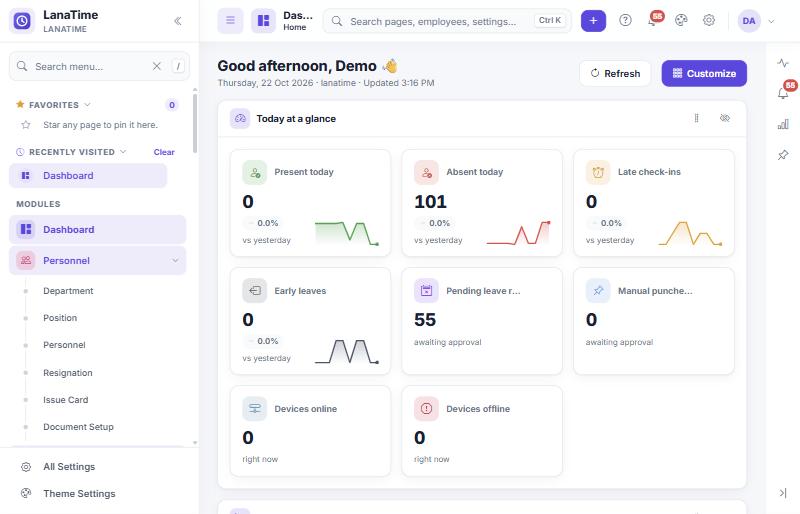
| Part | What it does |
|---|---|
| Menu (left) | Modules and their pages: Dashboard, Personnel, Device, Attendance, Payroll and System. Select a module to open or close it. Search menu… at the top filters the menu as you type. |
| Favorites | Pages you starred. Press F on a highlighted menu item to add it; reorder with Alt + ↑/↓. |
| Recently visited | The pages you opened last, newest first. Clear empties the list. |
| Breadcrumb (top) | Shows where you are, for example Home › Attendance › Shift. |
| Global search | Finds pages and employee records. See Search. |
| + button (Create new) | Opens the form for a new Personnel, Department, Position, Device, Schedule, Holiday or User without going to the list first. |
| ? button | Keyboard shortcuts, What's new in 7.5 and About. |
| Bell | System notifications; the red number is the count of unread items. |
| User menu (your initials) | My Account, Change password, Notifications, language, Dark mode, Theme Settings, All Settings, Keyboard shortcuts and Sign out. |
Search
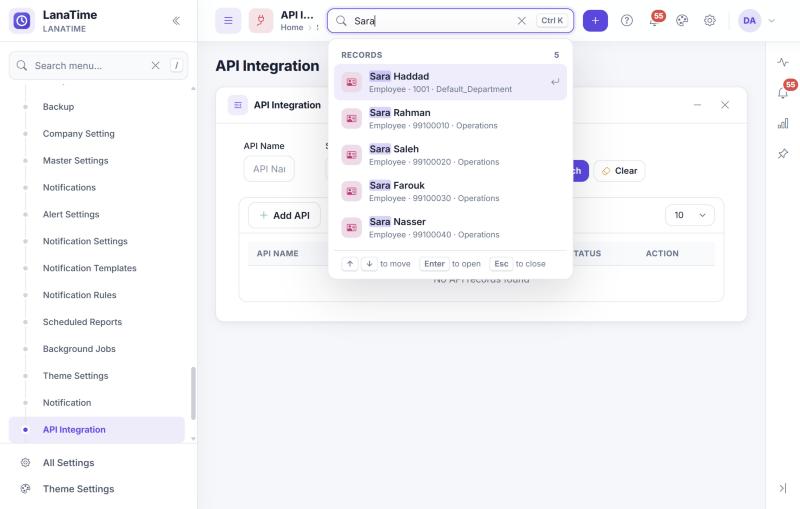
Press Ctrl + K anywhere (or select the search field at the top) and type part of a page name, a setting or an employee's name or number. Use ↑ ↓ to move, Enter to open and Esc to close.
Keyboard shortcuts
Press ? to see this list inside LanaTime. Shortcuts work everywhere except while you are typing in a field.
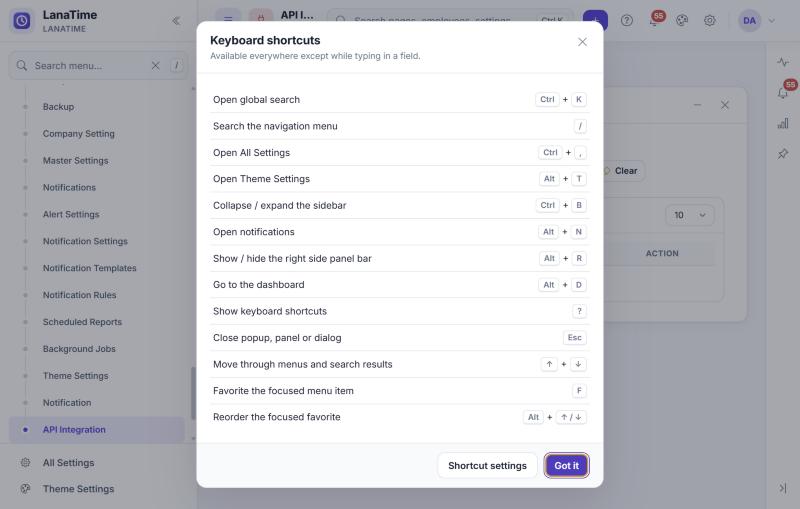
| Keys | Action |
|---|---|
| Ctrl + K | Open global search |
| / | Search the navigation menu |
| Ctrl + , | Open All Settings |
| Alt + T | Open Theme Settings |
| Ctrl + B | Collapse or expand the menu |
| Alt + N | Open notifications |
| Alt + R | Show or hide the right side panel bar |
| Alt + D | Go to the Dashboard |
| ? | Show keyboard shortcuts |
| Esc | Close a popup, panel or dialog |
| ↑ ↓ | Move through menus and search results |
| F | Add the highlighted menu item to Favorites |
| Alt + ↑/↓ | Reorder the highlighted favorite |
Buttons, statuses and symbols you will meet
| You see | Meaning |
|---|---|
| Save and New | Saves the record and opens an empty form for the next one. |
| Ok | Saves and returns to the list. |
| Cancel | Leaves the form without saving. |
| Red * next to a field | The field is required. If you leave it empty, "Required" appears under it when you save. |
| Check under a code field | Tells you whether the number or code is Available or Already exists before you save. |
| Field with an arrow that opens a tree | A chooser (department, area, position). Tick the items, then select Ok in the chooser; Undo clears the ticks. |
| Option (top right of a page) | A menu with more actions for that page. |
| Request status Pending / Approved by / Reject / Revoked | Waiting for a decision / approved (followed by the approver's name) / rejected / an earlier decision was withdrawn with Cancel Audit. |
Report symbols P, >, <, A, V, W, H, 1/2 … | Present, late, early leave, absent, leave, weekend, holiday, half day … The full list is in Report symbols. |
Most pages are lists with the same tools (filters, Advanced search, Add, Delete, Import, Export, Log). They are explained once in Working with lists.
Getting help
- Use the search box at the top of this Help Centre (press /).
- Look up your problem in Troubleshooting and FAQ. Each topic lists the likely causes, how to check them and what to tell your administrator.
- When you contact support, say which page you were on, what you selected, the time it happened and what you saw. LanaTime records every error with the time, page and user, so your administrator can find it.
Screens in this guide were captured from LanaTime 7.5 in a test environment with fictional employees (for example "Sara Haddad") and sample devices. Your screens show your own data and may show fewer menu items, depending on your role.