
Leave, requests and approvals
Leave, forgotten punches, schedule changes and work away from the office all go through the same cycle: someone submits a request, an approver decides, and the next calculation uses the approved request.
The request cycle
- Submit. An employee sends the request from their own pages or the mobile app, or HR enters it for them on the approval page with Add.Status: Pending.
- Route. The request goes to the approver of the employee's department (Personnel › Department › Set Approver). If the department has no approver, a system user approves it.
- Decide. The approver ticks the request, selects Approve and chooses Audit By (approve) or Reject.Status: Approved by (with the approver's name) or Reject.
- Use. The next time attendance is calculated for that person and date, the approved request is applied. If the dates were already calculated, select Calculate again (When to recalculate).
- Undo if needed. Cancel Audit withdraws a decision.Status: Revoked. Calculate again so the change reaches the reports.
| Status | Meaning | Counted in attendance? |
|---|---|---|
| Pending | Waiting for the approver. | No |
| Approved by … | Approved; the name shows who approved it. | Yes, after Calculate |
| Reject | Rejected. | No |
| Revoked | An earlier approval or rejection was withdrawn with Cancel Audit. | No |
When notifications are set up, LanaTime can tell the approver about each new request and tell the employee about the decision (events Leave requested / approved / rejected and the same for manual punch, outdoor and schedule change requests). See Notifications.
The approval pages
| Menu | Request | Key columns |
|---|---|---|
| Approvals › Leave Request | Leave | Person No, Name, Leave Date, Duration, Leave, Reason, Leave Type, Apply Time, Status, Approver, Remarks, ApprovedTime |
| Approvals › Manual Punch | A punch added by hand | Personnel No, First Name, Punch Time, Status (check-in, check-out …), Reason, Approve Status, Approver |
| Approvals › Schedule Adjustment | A change of timetable on a date | Date, Previous Schedule, New Schedule, Remarks, Apply Time, Approve Status, Approver |
| Approvals › Location Punch | Punches from the mobile app | Punch Time, Status, Approve Status, Approver, Location, Location selfie |
| Approvals › Outdoor Request | Work away from the office | Start/End Date and Time, Outdoor Type, Reason, Location, Approve Status, Approver |
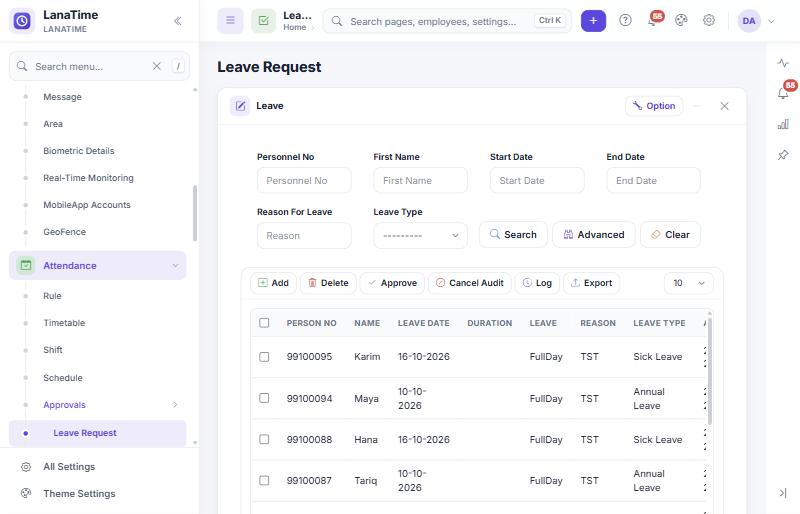
Approve or reject requests
- Open the approval page, for example Attendance › Approvals › Leave Request.
- Narrow the list if it is long: personnel number, name, dates, leave type, then Search.
- Tick the requests.
- Select Approve. A form opens.
- Choose the Status Of Review: Audit By to approve, or Reject. Type an Audit Reason if you want to explain the decision, and select Ok.The Status column changes to "Approved by …" or "Reject", with your name and the time.
Approvers with the mobile app's Administrator role can also approve, reject and revoke requests in the app (2021 mobile manual).
Enter leave for an employee
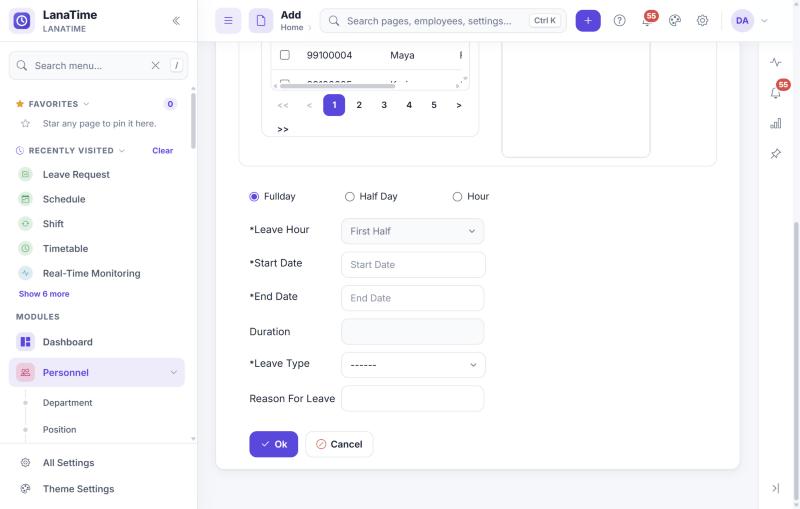
- On Attendance › Approvals › Leave Request select Add.
- Choose the employees with the chooser (how).
- Choose Fullday, Half Day or Hour. For a half day choose the Leave Hour: First Half or Second Half.
- Set the Start Date and End Date. Duration is filled in for you.
- Choose the Leave Type and type the Reason For Leave.
- Select Ok.One request per person appears in the list.
How leave affects attendance
- Only approved leave is used.
- Leave is applied on working days only: weekends and holidays inside the leave period stay weekends and holidays (unless the leave type has Enable Weekend As leave).
- If one day has several leave records, only the first one is used. Avoid overlapping leave.
- The day shows the leave type's symbol in the report (for example
AL).
Manual punch (forgotten punch)
Use a manual punch when a person forgot to punch or the device failed. On Attendance › Approvals › Manual Punch select Add Manual Punch, choose the people, then enter the Punch Date, Punch Time, the Status (check-in, Check-out, Break-Out, Break-In) and the Reason For Punching. After approval the punch is used like a device punch.
Enter the local time as it would have appeared on the device. A wrong status (check-out instead of check-in) can make the day look like a missing check-in.
Schedule adjustment
Employees request a different timetable for a date from their Schedule Request page or the mobile app. The approval list shows the previous and the new schedule. Approve or reject as above.
Location punches
Punches made in the mobile app carry the location and, when required, a selfie. Approve them on Attendance › Approvals › Location Punch; the list shows the location and the selfie for checking. Where geofences are set, the app limits punching to those places (Geofences).
Outdoor requests
For work away from the office. Add: choose the people, the Start Date and Start Time, End Date and End Time, the Outdoor Type (Inspection, Meeting, Official Duty, Training, Visit Customer, Other) and the Location.
Common mistakes
- Approved but not in the report. The dates were calculated before the approval. Run Calculate again for those people and dates.
- Request never reaches the approver. The department has no approver (Set Approver), or notifications are switched off.
- Leave on a weekend shows as weekend. Expected: leave is applied on working days only.
- Wrong person approved. Use Cancel Audit, then approve or reject again, and recalculate.
Related: Employee self-service · How attendance is calculated · Leave not reflected