
Personnel
The Personnel module holds your organisation chart and your employees. Everything else in LanaTime (devices, attendance, payroll) refers to the employees you keep here.
Departments
Purpose: the department tree. Every employee belongs to one department. Approvers, user permissions (Authorize Department) and many reports follow this tree.
Open: Personnel › Department
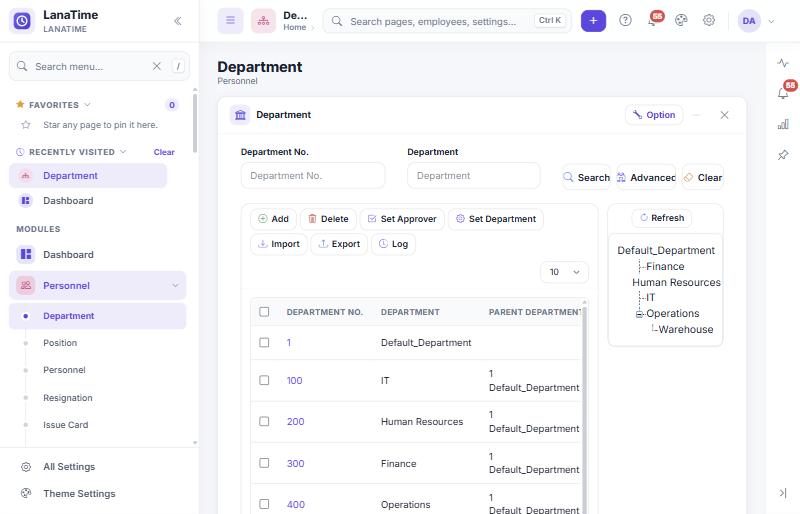
Add a department
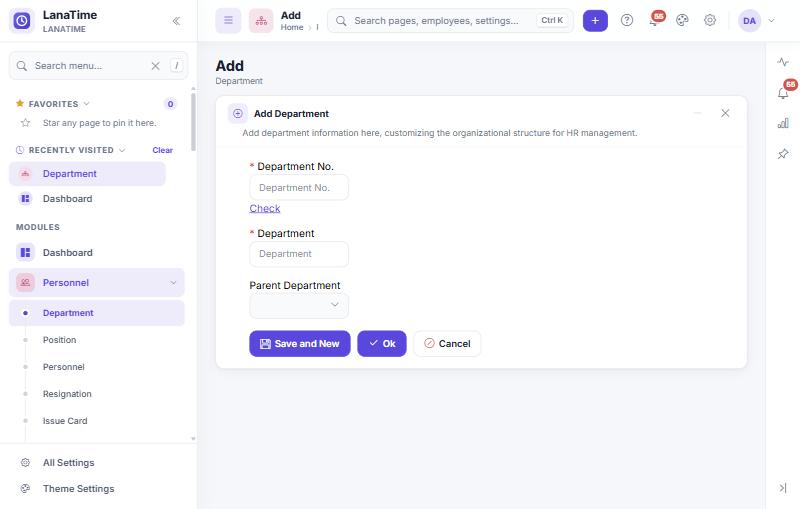
- Select Add (or + › Department in the top bar).
- Type the Department No., for example
410, and select Check."Available" means you can use the number; "Already exists" means choose another. - Type the Department name, for example Warehouse.
- Open Parent Department and pick the department it belongs to (for example Operations). Leave it empty for a top-level department.
- Select Ok (or Save and New to add another).The department appears in the list and in the tree, under its parent.
Other department actions
| Button | What it does |
|---|---|
| Set Approver | Choose the person who approves requests (leave, manual punch, outdoor, schedule change) for the ticked departments. Tick the departments first. |
| Set Department | Moves chosen employees into a department, using the personnel chooser. |
| Import | Creates departments from an Excel .xlsx file, following the template example shown in the import window. |
| Export, Log, Delete | As on every list (Working with lists). A department that still has sub-departments, positions or employees cannot be deleted; move them first. |
Positions
Purpose: job titles. A position is optional on the employee record but is shown on reports and the payroll report.
Open: Personnel › Position
Add a position with Position No., Position and optionally a Parent Position. Set Position gives a position to many employees at once; Import loads positions from .xlsx.
Employees
Purpose: one record per person whose attendance LanaTime records.
Open: Personnel › Personnel
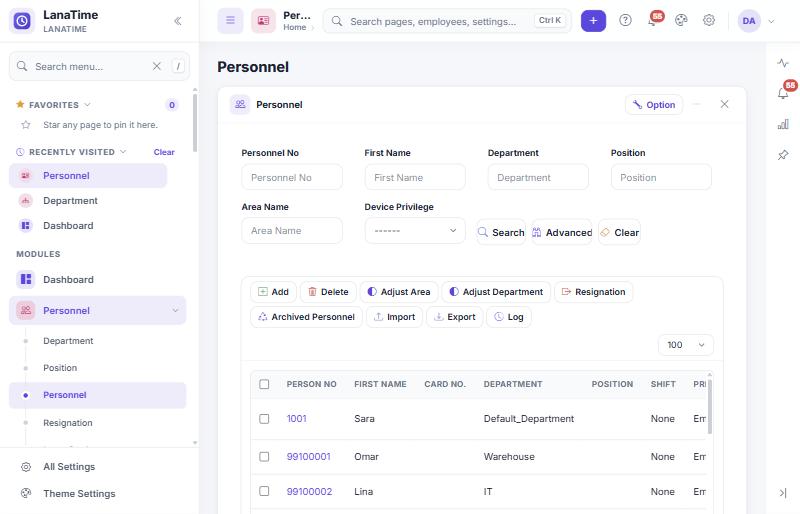
Add an employee
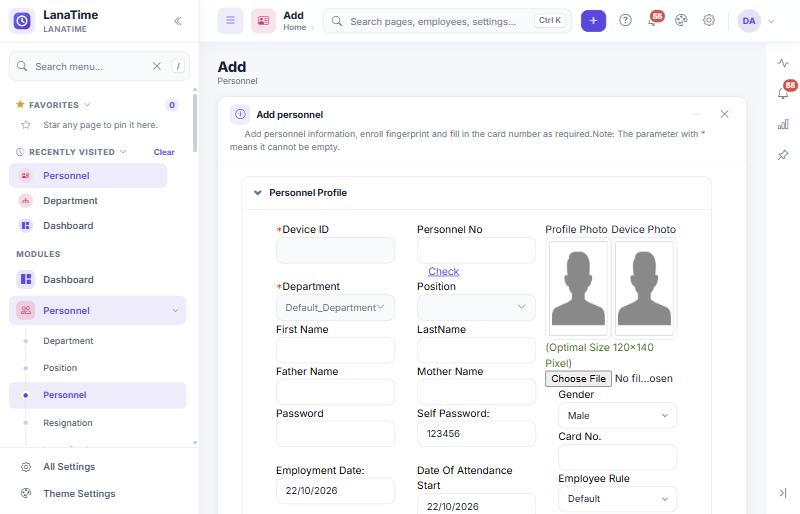
- Select Add on the Personnel list (or + › Personnel).
- In Personnel Profile, type the Device ID: the number the person will use on the device. Select Check under Personnel No to make sure the number is free.
- Choose the Department (required), and fill in the name and other fields below.
- Choose the Shift, Employee Rule and Holiday Group so attendance can be calculated.
- Open Attendance Settings and choose the Area whose devices this person uses.
- Select Ok.The employee appears in the list. To use the devices, send the employee to them (Send Employee To Device).
Personnel Profile
| Field | Meaning and effect |
|---|---|
| Device ID * | The number on the attendance device. When Master Settings › Personnel No and Device Id is Same is Yes, the Personnel No follows it. |
| Personnel No | The employee number used throughout LanaTime and on reports. Employees sign in with it. |
| Department * | Where the person belongs. Decides the approver and who may see the person. |
| Position | Job title (optional). |
| First Name, LastName, Father Name, Mother Name | Names as shown on lists and reports. |
| Password | The password stored on the device for this person (for devices that allow password punching). |
| Self Password | The employee's password for the Employee Self sign-in and the mobile app. The form proposes 123456; LanaTime makes the employee change such a weak password at the first web sign-in. |
| Employment Date | Date of joining. |
| Date Of Attendance Start | Attendance is counted from this date. Days before it get no attendance result. |
| Employment Type / Type | Employee or Contractor; Permanent or Temporary. |
| Company | The company the person belongs to (installations with several companies). |
| Shift | The person's default shift. You can also give shifts later with Schedule or Set Shift. |
| Payment Period | Monthly, Weekly or Daily (used by payroll). |
| Profile Photo, Device Photo | Pictures; the page recommends 120 × 140 pixels. The device photo can be sent to face devices. |
| Gender, Blood Group | Personal details. Gender also controls which leave types apply (a leave type can be limited to Female or Male). |
| Card No. | Access card number, for card devices. |
| Employee Rule | Which attendance rule applies (Default unless you choose another). |
| Holiday Group | Which group's holidays apply. None means only holidays not restricted to a group. |
Other sections
| Section | Fields |
|---|---|
| Personnel Details | Work Address, Office Telephone, Birthday, Home Address, Home Telephone, ID Number, Postal Code, Mobile Phone, Email. The e-mail and mobile number are used for notifications. |
| Expiry Alert | For each document defined in Document Setup: the expiry date (Expire On) and how many days before it an e-mail alert is sent. |
| Attendance Settings | Area: the devices this person uses. Enable Attendance Function: Yes (default) or No. Device Privilege: Employee, Registrar, System Administrator or Super Administrator on the device (who may open the device's menu). |
| Mobile App Setting | App Status Enable/Disable, App Version Lite or Pro, App Role Employee or Administrator, Authentication Enable/Disable. See Mobile app. |
"Enable Attendance Function = No" is stored on the employee, but this guide could not confirm in which screens it excludes the person. Test it with one employee before relying on it.
Import many employees
- On the Personnel list, select Import.
- Look at Importing Template Example in the window and prepare an Excel
.xlsxfile with the same columns. Departments used in the file must already exist. - Choose the file. Tick Trim Employee Name to remove spaces before and after names.
- Select Ok.The imported people appear in the list. Check a few records before sending them to devices.
Save the file as "Excel Workbook (*.xlsx)". Files with other extensions, and files that are not real spreadsheets, are refused.
Other employee actions
| Button | What it does |
|---|---|
| Adjust Department | Moves the ticked employees to another department (Adjusted to Department). |
| Adjust Area | Changes the area of the ticked employees. Tick employees first; the page needs a selection. |
| Resignation | Records the resignation of the ticked employees (see below). |
| Archived Personnel | Former employees. In the test installation this page opened the Dashboard instead, even for a super user; see Troubleshooting. |
| Import, Export, Log, Delete | As on every list. |
Resignation (employees who leave)
Purpose: records the last day and reason, and stops attendance after that day.
Open: Personnel › Resignation › Add, or Resignation on the Personnel list.
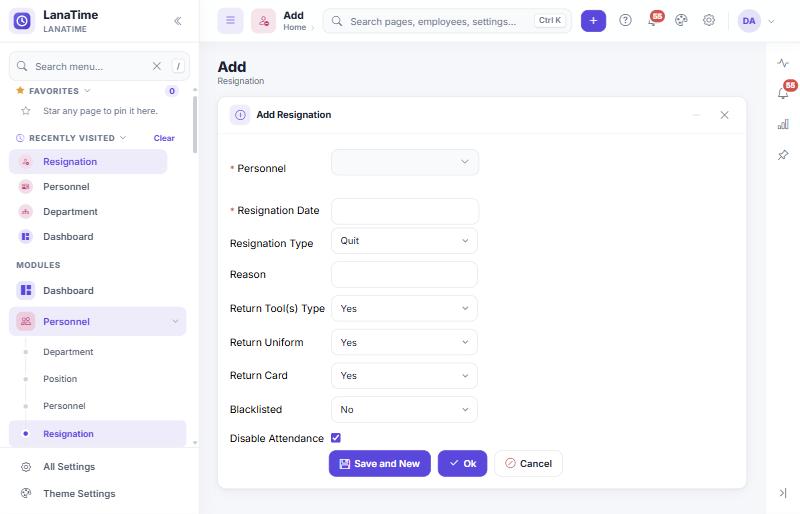
| Field | Meaning |
|---|---|
| Personnel * | The employee who leaves. |
| Resignation Date * | The last day. Attendance is calculated up to this date. |
| Resignation Type | Quit, Dismissed, Resign, Transfer or Retain Job Without Salary. |
| Reason | Free text. |
| Return Tool(s) Type, Return Uniform, Return Card | Yes or No: what the person handed back. |
| Blacklisted | Yes marks the person as not to be rehired. |
| Disable Attendance | Ticked by default: attendance stops after the resignation date. |
On the Resignation list, Reinstatement brings a person back, and Disable Attendance Function switches attendance off for ticked people.
Whether resigned people still appear on attendance pages and reports is set in the rule (Resign Staff › Display The Resign Staff). By default they do not appear. Calculate a leaver's last month before recording the resignation if your settings hide them.
Access cards
Open: Personnel › Issue Card
- Issue Card: choose one person and type the Card No.
- Batch Card: give cards to a range of people. Enter Start Personnel No. and End Personnel No.; the page lists the people without a card. Choose the Issue Card Way and enter or read the card numbers (Input Card No.); issued cards are listed under Issued Cards.
- Retreat Card: takes a card back from a person (for example a lost card).
Document Setup
Purpose: the list of documents you track for employees (passport, visa, work permit, licence …), so LanaTime can warn before they expire.
Open: Personnel › Document Setup. Add each document with a No and Document Name. Then enter each employee's expiry dates in the employee's Expiry Alert section. Alerts are sent by e-mail when notifications are set up (Notifications; event Document expiring).
Common mistakes
- Wrong Device ID. The device sends punches with its own user number. If it differs from the employee's Device ID, the punches do not reach that employee. Check one punch in Attendance › Transactions after adding a person.
- No shift and no schedule. The person then has no working days (unless Auto Timetable is enabled), so reports show no lateness or absence. Give a shift on the record or with a schedule.
- Date Of Attendance Start in the future. No results are calculated before that date.
- Deleting instead of resigning. Use Resignation for people who leave: it keeps the person's history and records why and when they left. Delete only records created by mistake; a deleted person disappears from lists and reports.
Related: Devices (send employees to devices) · Timetables, shifts and rules · Payroll settings per employee