
Employee self-service
If you are an employee, this page is for you. You can check your own punches and attendance and send requests to your manager, from a computer or from the LanaTime mobile app.
Sign in
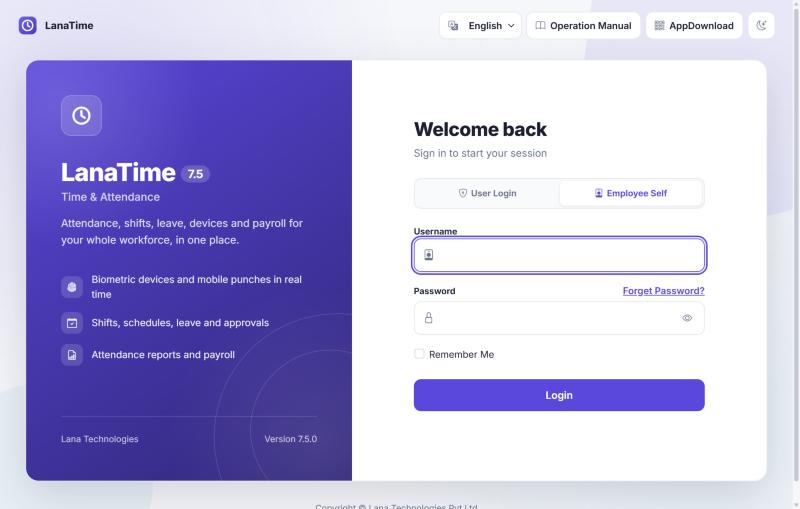
- Open the LanaTime address your HR department gave you.
- Select the Employee Self tab.
- Type your personnel number as the Username and your password, then select Login.Your Manual Punch page opens.
- If LanaTime asks for a new password, choose one with at least 8 characters, using letters and digits.
Your company can block employee sign-in (Company Setting). After several wrong passwords your number is also blocked for a few minutes. If it still fails, ask HR.
Forgotten password
- On the Employee Self tab select Forget Password?.
- Type your Employee Id and select Send Link.A reset link is sent to the e-mail address on your employee record. For privacy, the page shows the same message whether or not the number exists.
- Open the link within 30 minutes and choose a new password. The link works only once.
No e-mail? Your record may have no e-mail address, or e-mail is not set up. Ask HR to set a new password for you.
Change your password
Open your initials at the top right › Change password. Enter your old password and the new one twice, then Ok.
Your menu
| Page | What you can do |
|---|---|
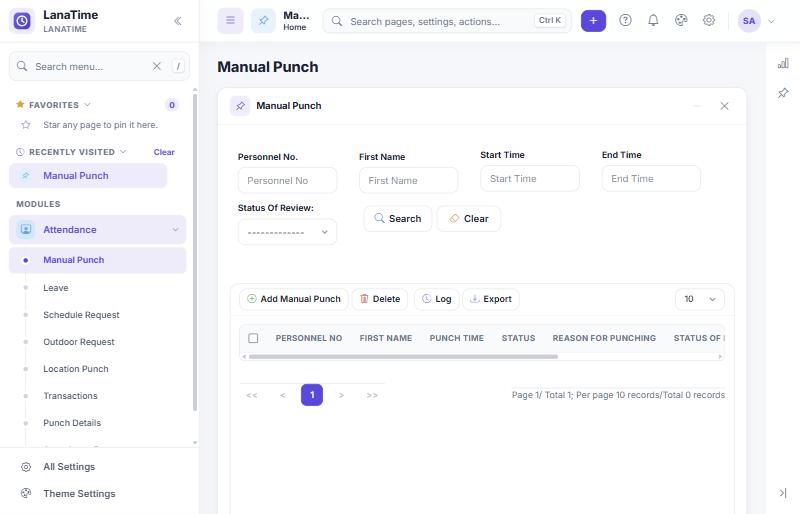
| Manual Punch | Ask for a punch you missed to be added, and follow your earlier requests. |
| Leave | Apply for leave and follow its approval. |
| Schedule Request | Ask for a different timetable on a date. |
| Outdoor Request | Report work done away from the office. |
| Location Punch | See the punches you made with the mobile app. |
| Transactions | See every punch LanaTime received for you. |
| Punch Details | Your punches per day. |
| Attendance Reports | Your own attendance reports. |
Send a request
Apply for leave
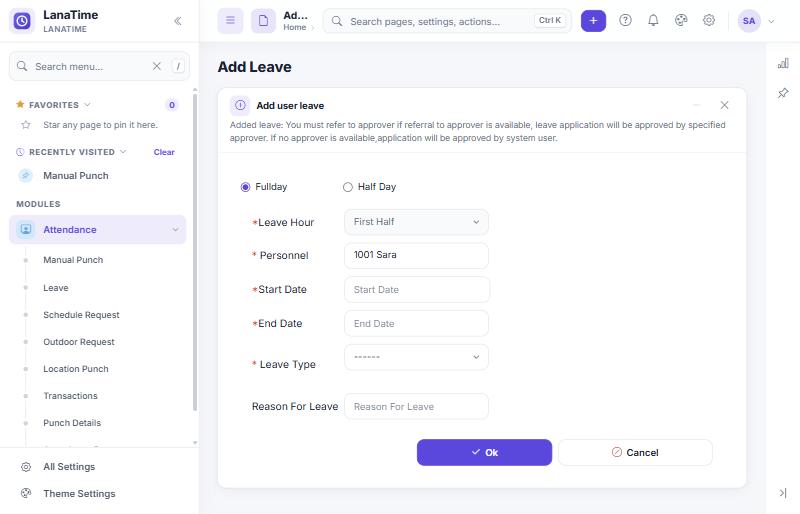
- Open Leave and select Add.
- Choose Fullday or Half Day (for a half day, choose First Half or Second Half under Leave Hour).
- Set the Start Date, End Date and Leave Type, and type a Reason For Leave.
- Select Ok.The request appears with status Pending. It goes to your department's approver, or to a system user if your department has none.
Ask for a missed punch
Manual Punch › Add Manual Punch: choose the Punch Date, the time, the Status (check-in, Check-out, Break-Out or Break-In) and a Reason For Punching, then Ok.
Report outdoor work
Outdoor Request › Add: Start Date, Start Time, End Date, End Time, Outdoor Type and Location.
Request statuses
Pending: waiting for a decision. Approved by …: approved. Reject: rejected. Revoked: a decision was withdrawn. Approved requests appear in your attendance after HR recalculates it.
Your attendance reports
Attendance Reports: choose the start and end date and the report (Schedule Logs, Daily Attendance, Total Timecard, Attendance, Leave Summary, First in LastOut, Exception or Time Card), then Search. Export with XLS, PDF or CSV. The symbols are explained in Report symbols.
Check Transactions first: is your punch there? If a punch is missing, send a manual punch request. If the punch is there but the day looks wrong, tell HR the date.
The LanaTime mobile app
The mobile app is a separate Android program. Its source was not part of this guide's review; the steps below come from the LanaTime Mobile Application manual (2021) and may differ in newer app versions. Your administrator decides who may use the app (MobileApp Accounts).
- Install and connect: install the app from the file or link your company provides (the sign-in page's AppDownload button shows a QR code). On the app's sign-in screen use the settings button to enter the server address and port your administrator gives you.
- Sign in: with your employee ID and your self-service password. One account can be signed in on one phone at a time.
- Punch: Punch shows your location on a map; take a selfie, choose check-in, check-out, break-in or break-out, and confirm. Location punches may need approval.
- Requests: leave, outdoor and manual punch requests, and schedule changes from the calendar.
- My Requests, Leave, Logs, Report: follow requests, see leave balances, punch and attendance logs, and an attendance report you can export as PDF.
- Administrators using the app can approve, reject and revoke requests, see staff reports, location history and live location (when employees enable live location).
Related: How approvals work · Cannot sign in