
Dashboard and reports
Where to see today at a glance, raw punches, calculated attendance and totals, and how to export them. Payroll figures are in the Payroll Report.
Dashboard
Open: Dashboard (the first page after signing in; Alt + D).
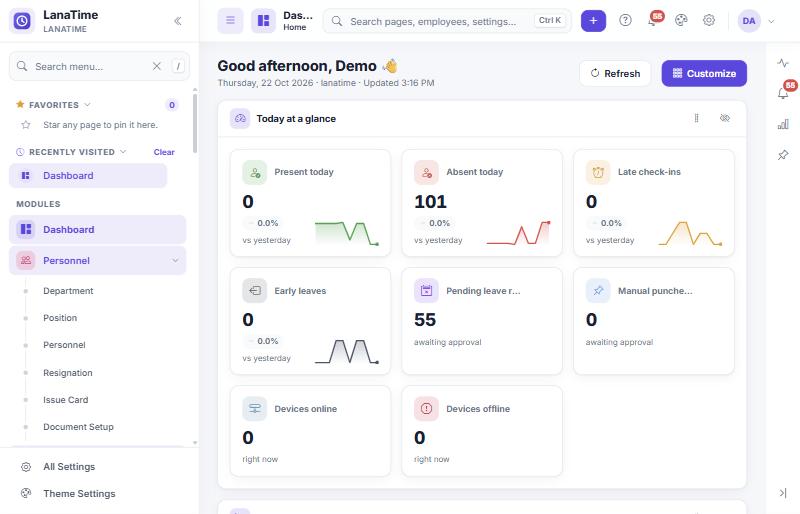
| Widget | Shows |
|---|---|
| Today at a glance | Present today, Absent today, Late check-ins, Early leaves, Pending leave requests, Manual punches today (awaiting approval), Devices online, Devices offline. |
| Attendance - last 10 days | A chart of the last ten days; Reports opens the reports. |
| Today's attendance | Today's split of present, absent, late and so on; Transactions opens the punches. |
| Recent punches | The latest punches received. |
| Device status | Which devices are online or offline. |
| Exceptions today | Today's attendance exceptions. |
Refresh reloads the figures. The eye button on a widget hides it, and Customize changes which widgets the dashboard shows. Select a card to open the page behind it.
Figures for today depend on punches received so far and on approved requests. A person who has not punched yet counts as absent until they do.
Transactions (raw punches)
Open: Attendance › Transactions. Every punch received, before any calculation. Use it first when a result looks wrong.
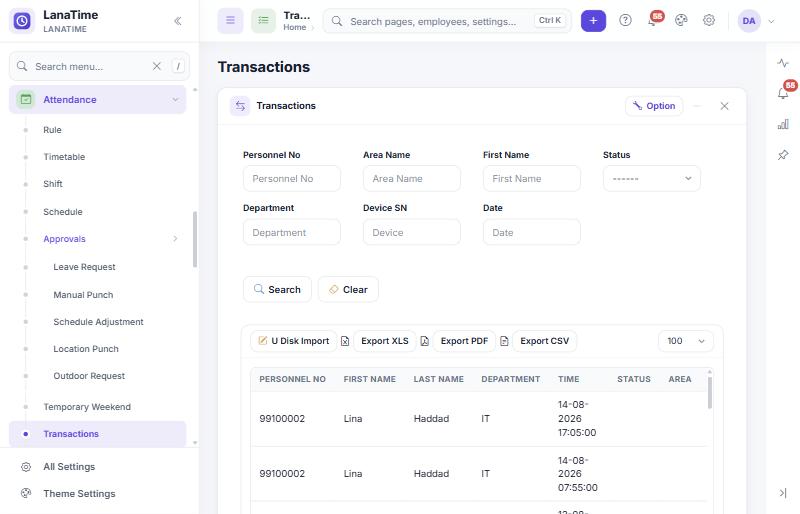
- Columns: Personnel No, First Name, Last Name, Department, Time, Status (check-in, check-out, break, OT), Area, Device SN, Device Name, and for some devices Mask and Temperature.
- Export XLS, Export PDF, Export CSV download the filtered list.
- U Disk Import loads punches exported from a device to a USB stick.
Attendance Report
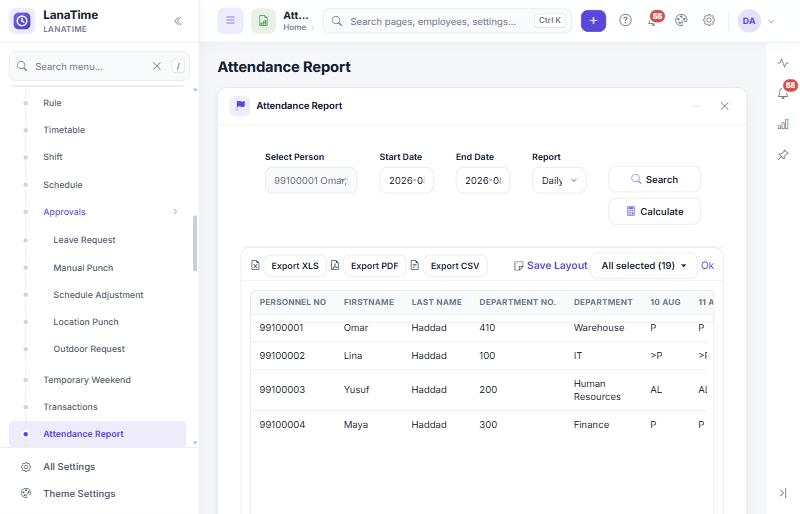
Open: Attendance › Attendance Report. Day-by-day and summary reports of the calculated attendance.
- Open Select Person. In the window, choose people (by department, personnel number, area or shift) and select OK.
- Set the Start Date and End Date.
- If anything changed for these people and dates, select Calculate and wait for it to finish (many people or a long period take a while).
- Choose the Report and select Search.The report appears in a grid below. Export it with Export XLS, PDF or CSV.
- Optional: choose which columns to show in the column list at the right of the grid and select Save Layout so the choice is kept.
| Report | Shows | Use it to |
|---|---|---|
| Schedule Logs | Each person's scheduled timetable per day | Check who was supposed to work when |
| Daily Attendance | One symbol per person per day, with totals (attendance duration, short time, late, early leave, absent, overtime by type) | Review a month at a glance |
| Total Timecard | Totals per person for the period | Hours worked, lateness and overtime per person |
| Total Timecard (HH:mm:ss) | The same in hours, minutes and seconds | Exact times |
| Attendance | Summary per person with the symbol legend under the grid | Monthly attendance sheet |
| Leave Summary | Leave taken per person and type | Leave balances and checks |
| First in LastOut | First and last punch of each day | Quick check of presence |
| Exception | Days with problems (late, early, absent, missing punches) | Follow up exceptions |
| Time Card | Day-by-day card per person with punches | Individual review or dispute |
Statistics Report
Open: Attendance › Statistics Report. Ready-made printable reports in five groups.
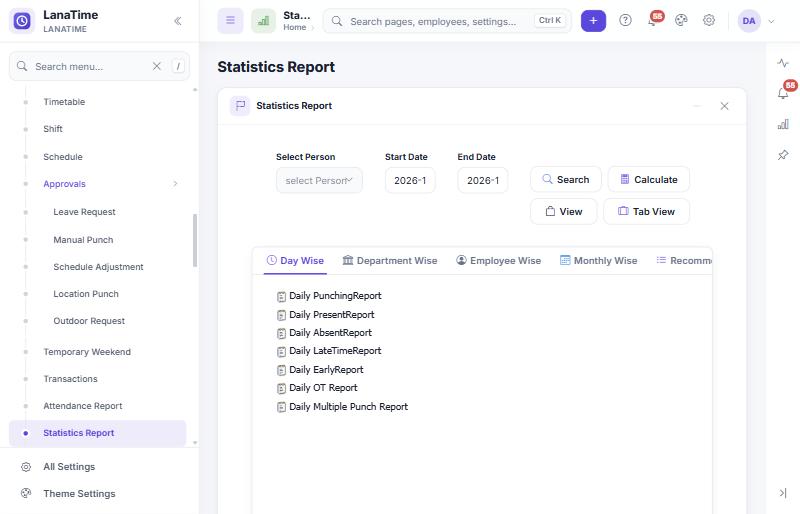
- Choose people (Select Person) and the dates. Select Calculate if needed.
- Pick a report on one of the tabs.
- Select View to open it in this tab, or Tab View to open it in a new browser tab. The report opens in the report viewer, whose toolbar lets you page through and export it.
| Group | Reports |
|---|---|
| Day Wise | Daily Punching, Daily Present, Daily Absent, Daily Late Time, Daily Early, Daily OT, Daily Multiple Punch |
| Department Wise | Daily Attendance Basic, Detailed, In/Out Punch and Summary; Scheduled Log, Dynamic, Total Timecard, Attendance, Leave summary, First In Last Out, Exception and Time Card by department; Employee Details, Leave Details, Blood Group, In/Out Duration, Master roll; Generate Memo (individual); Log Reports |
| Employee Wise | Period Employee, Leave, Scheduled Log, Dynamic, Total Timecard, Attendance, Leave summary, First In Last Out, Exception and Time Card per employee; Attendance Punch |
| Monthly Wise | Monthly Dynamic, Detail, Summary, Basic, OT Summary, Work Duration and Attendance Dynamic reports |
| Recommended | Scheduled log, Total Timecard, Attendance, Leave summary, First In Last Out, Exception, Time Card, Monthly Detailed XL, Transaction, Time Card In/Out, Working Hours/Date XL, Daily Attendance, Time Card with Device/Location |
Most Statistics reports can be e-mailed on a schedule (daily, weekly, monthly) as PDF or Excel. See Scheduled Reports.
Custom Report
Open: Attendance › Custom Report. Build your own report from the fields you choose, save it and run it again later.
- Add a report with the + button in the Reports panel: give it a Report Name, a Time Period (Today, Yesterday, This Week, Last Week, This Month, Last Month) and a Description, choose the fields, and select Save.
- Select a saved report in the Reports panel to see its data under Report Data.
- Export downloads the data. The pencil and bin buttons edit and delete saved reports.
Practical examples
Check one employee's month
- Attendance Report → Select Person: the employee → dates: first to last day of the month.
- Calculate, then Report Daily Attendance → Search.
- Read the symbols per day and the totals at the right. For details of one day use Time Card.
Find who was late yesterday
Statistics Report → Day Wise → Daily LateTimeReport for yesterday's date (after Calculate). Or the dashboard's Late check-ins for today.
Find missing punches
Attendance Report → Report Exception for the period. Days with [ (no check-in) or ] (no check-out) need a manual punch request or a correction.
Total overtime for payroll
Attendance Report → Report Total Timecard: Normal OT, Weekend OT and Holiday OT per person. The Payroll Report uses the same figures after Att Calculate.
When a report is empty or wrong
- "No related record": no person selected, dates the wrong way round, nothing calculated yet for those dates (select Calculate), or the people resigned before the period.
- Resigned people missing: the rule hides resigned staff by default (Rule › Resign Staff).
- Figures differ between reports: another page calculated afterwards, or the periods differ (the late-count rule depends on the period). See Why two reports can disagree.
- Wrong day result: follow Investigating a wrong result.
Related: How attendance is calculated · Payroll Report · Employee reports