
Payroll
LanaTime payroll starts from each employee's basic salary, adds or removes amounts for overtime, lateness, early leave, absence and leave using formulas, and applies increments, allowances, deductions, expenses and cash advances.
Set up payroll
- Check the formula signs (Base formula sign).
- Add your currency (Currency), allowance types and deduction types.
- Create the OT, exception and leave formulas (Formulas).
- Give each employee a currency, basic salary and formulas (Payroll settings).
- Each period: record increments, allowances, deductions, expenses and cash advances, then run the Payroll Report.
Base formula sign
Open: Payroll › Basic Setting › Base- formula sign. These are the short names you use inside formulas.
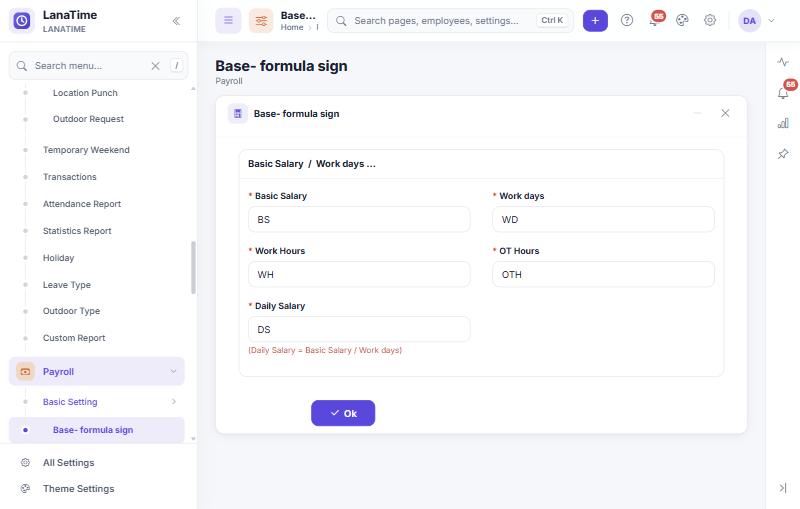
| Sign | Meaning |
|---|---|
BS | Basic Salary of the employee |
WD | Work days |
WH | Work Hours |
OTH | OT Hours (overtime hours of the period) |
DS | Daily Salary = Basic Salary / Work days |
Formulas are saved as text with these signs. If you rename a sign later, check every formula.
Currency, allowance types, deduction types
- Payroll › Basic Setting › Currency: Currency, Basic Currency (tick for your main currency) and Remarks.
- Payroll › Basic Setting › Allowance Type: Allowance Code and Allowance Name (for example Housing, Transport).
- Payroll › Basic Setting › Deduction Type: Deduction Code and Deduction Name (for example Loan, Penalty).
Formulas
Open: Payroll › Formula › OT Formula, Exception Formula or Leave Formula › Add.
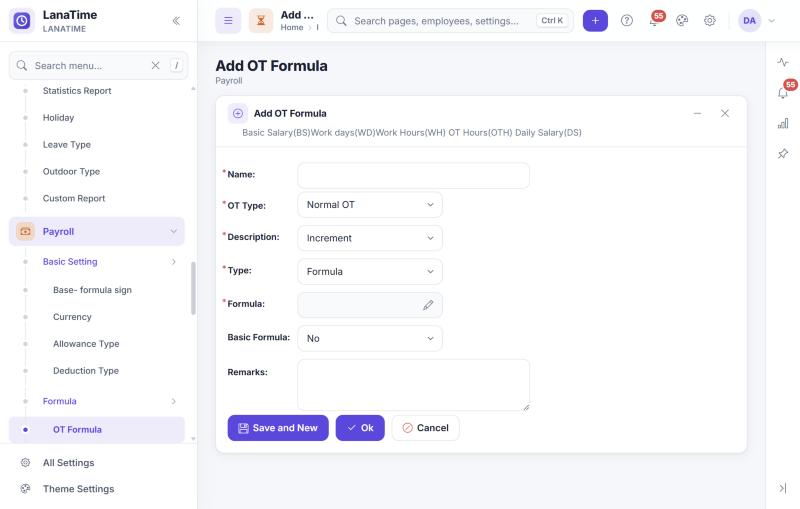
| Field | Meaning |
|---|---|
| Name | For example OT 1.5x. |
| OT Type / Exception Type / Leave Type | OT formulas: Normal OT, Weekend OT or Holiday OT. Exception formulas: Late, Early leave or Absent. Leave formulas: one of your leave types. |
| Description | Increment (adds to the salary) or Decrement (deducts). |
| Type | Formula (calculated) or Fixed (a fixed amount per unit: Fixed Amount and Fixed Unit). |
| Formula | Built with the calculator (pencil button). |
| Basic Formula | Yes makes this the default formula for its type. Only one formula per type can be the default; saving Yes clears it on the others. |
| Remarks | Free text. |
Build a formula with the calculator
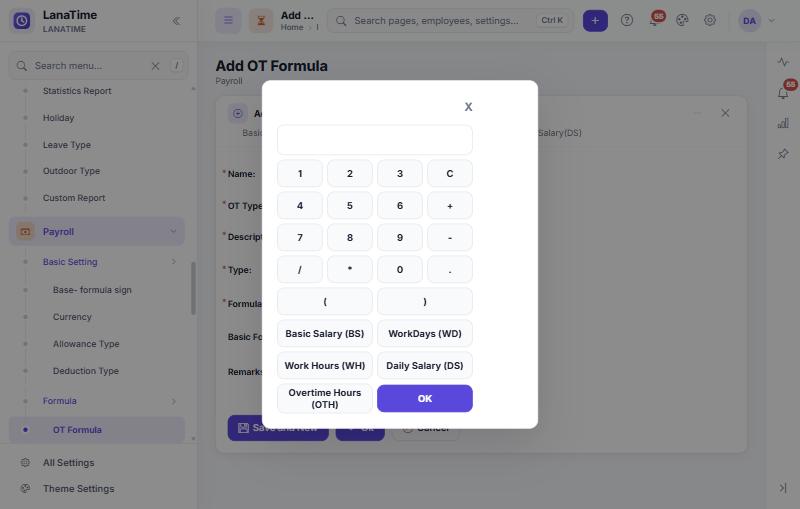
- Select the pencil at the end of the Formula field.
- Build the formula with the keys: numbers,
+ - * /, brackets, and the buttons Basic Salary (BS), WorkDays (WD), Work Hours (WH), Daily Salary (DS), Overtime Hours (OTH). C clears. - Select OK.The formula is copied into the Formula field. X closes the calculator without copying.
With a 30-day month and 8-hour days: BS/30/8*1.5*OTH. Or, if WD and WH hold the month's work days and daily hours: BS/WD/WH*1.5*OTH. Check the result for one employee in the Payroll Report before using it for everyone.
Payroll settings per employee (salary structure)
Open: Payroll › Salary Structure › Payroll Settings. The Salary Structure list shows each person's Basic Salary, Currency, Issue Date, Bank Name, Bank Account and formulas.
- Choose the employees with the chooser.
- Choose the Currency, type the Basic Salary, and choose the OT Formula, Exception Formula and Leave Formula.
- Overwrite: Yes replaces existing settings of these employees; No keeps them.
- Select Ok.
Salaries for many people can be loaded from Excel with Import on the Salary Structure list (.xlsx, following the template).
Increments, allowances, deductions, expenses and cash advances
All five pages work the same way: Add → choose the employees → enter the details → Ok.
| Page | Fields | Effect |
|---|---|---|
| Increment | Description (Increment or Decrement), Amount, Issue Date, Remarks | Changes the basic salary from the issue date (shown on the Salary Change tab). |
| Allowance | Allowance Type, Amount, Issue Date, Remarks | Adds an amount. |
| Deduction | Deduction Type, Amount, Issue Date, Remarks | Deducts an amount. |
| Expense | Amount, Issue Date, Remarks | Records an expense to reimburse. |
| Cash Advance | Amount, Issue Date, Remarks | Records money paid in advance. |
Payroll Report
Open: Payroll › Payroll Report
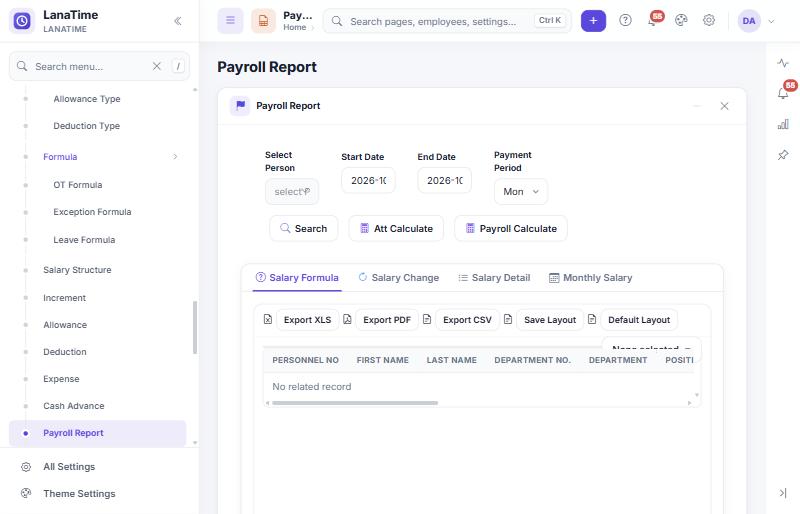
- Choose the people (Select Person), the Start Date and End Date, and the Payment Period (Monthly, Weekly or Daily).
- Select Att Calculate: attendance is calculated for these people and dates. This page has its own copy of the attendance calculation, nearly identical to Attendance Report › Calculate (see Why two reports can disagree).
- Select Payroll Calculate: salaries are worked out from the attendance and the payroll settings.
- Select Search and read the tabs.
| Tab | Shows |
|---|---|
| Salary Formula | Per person: department, position, current salary, currency, Normal / Weekend / Holiday OT, Late, Early leave, Absent and the formulas applied. |
| Salary Change | Increments and decrements: original salary, updated salary, increment, issue date, weekday, remarks. |
| Salary Detail | Day by day: overtime, allowances, advances, deductions, increments, expenses, leave, absence, lateness and early leave. |
| Monthly Salary | Totals per person and month. |
Each tab has Export XLS, Export PDF and Export CSV, a column chooser, Save Layout and Default Layout.
If leave, punches, allowances or salaries change after you ran the payroll, run Att Calculate and Payroll Calculate again for the period before exporting.
The person list of this page does not offer people with a resignation record. Run the payroll for a leaver's last period before recording the resignation, or ask your administrator.
Related: How overtime is counted · Leave with or without pay