
Timetables, shifts and rules
These settings tell LanaTime when each person is expected to work and how to judge their punches. Get them right once and attendance is calculated correctly every day.
A timetable is one working period (09:00 to 18:00). A shift repeats timetables over a cycle (Monday to Friday on the 09:00 timetable). A schedule gives a shift to people from a date. The rule sets the weekend and how lateness, absence and overtime are counted. Holidays and leave override working days.
Timetables
Open: Attendance › Timetable. The list has two tabs: Normal Timetable and Flexible Timetable.
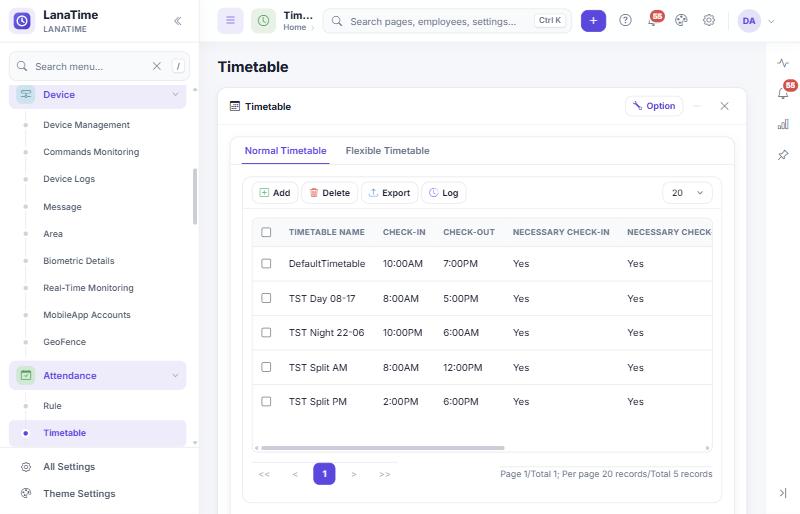
Create a normal timetable
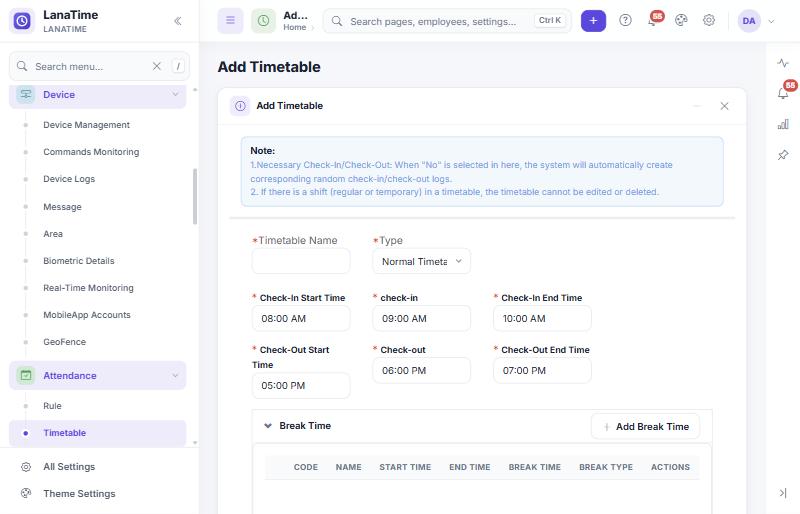
- Select Add, type a Timetable Name (for example Office 09-18) and keep Type = Normal Timetable.
- Set the working times and windows (see the table).
- Add breaks with Add Break Time if the working time should not include them.
- Set lateness, early leave and overtime options, then select Ok.
| Field | Meaning | Example |
|---|---|---|
| Check-In Start Time | Earliest punch that counts as this timetable's check-in. | 08:00 |
| check-in | The time work starts. Arrival after this (plus Late Arrival minutes) is late. | 09:00 |
| Check-In End Time | Latest punch that still counts as check-in. | 10:00 |
| Check-Out Start Time | Earliest punch that counts as check-out. | 17:00 |
| Check-out | The time work ends. Leaving before this (minus Early Out minutes) is early leave. | 18:00 |
| Check-Out End Time | Latest punch that still counts as check-out. | 19:00 |
| Necessary Check-In / Necessary Check-Out | Yes: the punch is required. No: LanaTime creates the missing check-in or check-out itself (the page's note: "the system will automatically create corresponding random check-in/check-out logs"). | Yes |
| Late Arrival | Minutes of grace after check-in before a person counts as late. | 0 |
| Early Out | Minutes of grace before check-out before a person counts as leaving early. | 0 |
| Auto OT (Check-In Early) + Min minutes | Yes: arriving early counts as overtime, if it is at least the minimum minutes. | No, 60 |
| Auto OT (Check-Out Delay) + Min minutes | Yes: staying late counts as overtime, if at least the minimum minutes. | No, 60 |
| Break Time | Each break: Code, Name, Start Time, End Time, Break Type, and how early or late a return still counts. | 13:00-14:00 |
A punch outside every window is not used as check-in or check-out. If people often arrive before 08:00 in the example above, their punch is ignored and the day shows a missing check-in. Make the windows wide enough for real behaviour, but keep the windows of different timetables on the same day from overlapping.
A timetable used by any regular or temporary shift cannot be edited or deleted (the page says so in its note). Create a new timetable and switch the shift to it.
Flexible and off-day timetables
The Type list also offers Flexible Timetable (fields such as Work Time (minute), Only consider first and last punch, Change At, Min minutes of OT and Base On Punch Type) and Off Day TimeTable. These types exist in LanaTime but were not covered by this guide's tests; try them with a test employee before using them widely.
Shifts
Open: Attendance › Shift › Add
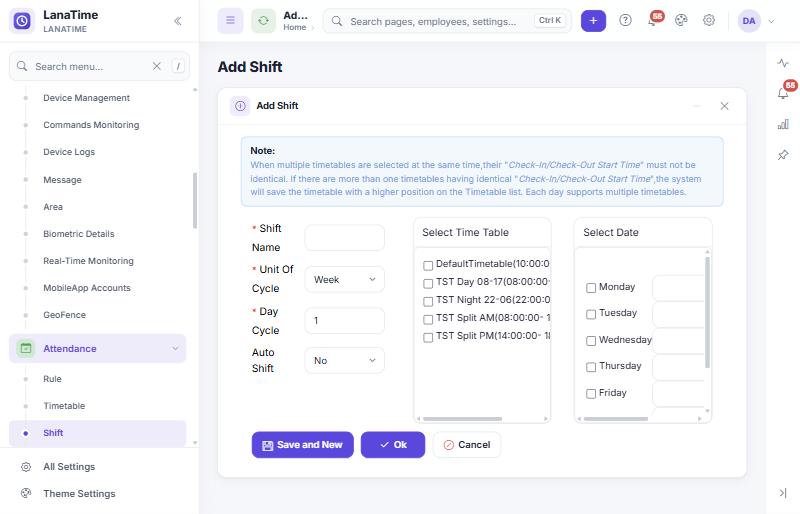
- Type the Shift Name, for example Office week.
- Choose the Unit Of Cycle (Week or Day) and the Day Cycle: how many units before the pattern repeats (1 week; or for example 4 days for a 2-on-2-off rota).
- Tick a timetable under Select Time Table, then tick the days it applies to under Select Date. Repeat for other timetables. Days without a timetable have no working time.
- Auto Shift (No / Yes) is an option of the shift. Its exact effect was not verified for this guide; the separate Master Settings › Auto Timetable option is described in How attendance is calculated.
- Select Ok.
A day can have more than one timetable (for example a split shift 08:00-12:00 and 14:00-18:00). Their check-in and check-out start times must differ; if two are identical, LanaTime keeps the one higher in the Timetable list.
Set Shift on the Shift list gives one shift to many employees at once: choose the people with the chooser, pick the Shift and select Ok.
Schedules
Open: Attendance › Schedule
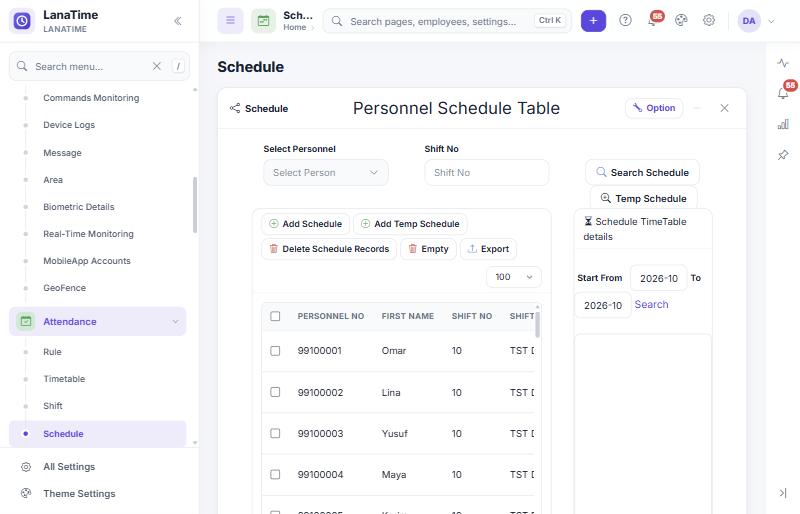
Give a shift to employees
- Select Add Schedule.
- Choose the people (the chooser also offers an UnSchedule List of people without a schedule).
- Choose the Shift, the Start Date and End Date. The shift's timetables per weekday are shown for checking.
- Select Ok.The people appear in the list with the shift and dates.
Temporary schedules
A temporary schedule replaces the normal schedule on chosen dates, for example a night week or a special event. Select Add Temp Schedule, choose the people, tick the dates in the calendar and the timetables, and choose:
- Work type: Normal Work, Normal OT, Weekend OT or Holiday OT (how the time is counted).
- Mode: Activate Temp Schedule (use instead of the normal schedule) or Add Additional Temp Schedule (in addition to it).
Temp Schedule lists temporary schedules; Delete Schedule Records and Empty remove schedule records, so check what is selected before using them.
For each day LanaTime uses, in this order: a temporary schedule; otherwise the normal schedule; otherwise the shift on the employee record; otherwise, if Auto Timetable is enabled, the timetable that matches the first punch. See How attendance is calculated.
Attendance rules
Open: Attendance › Rule. The list shows each rule's main values (Allowed Late, Allowed Early, Work Duration, HalfDay Duration, Overtime and Weekend). Every employee uses the Default rule unless another is chosen on their record or with Set Rule.
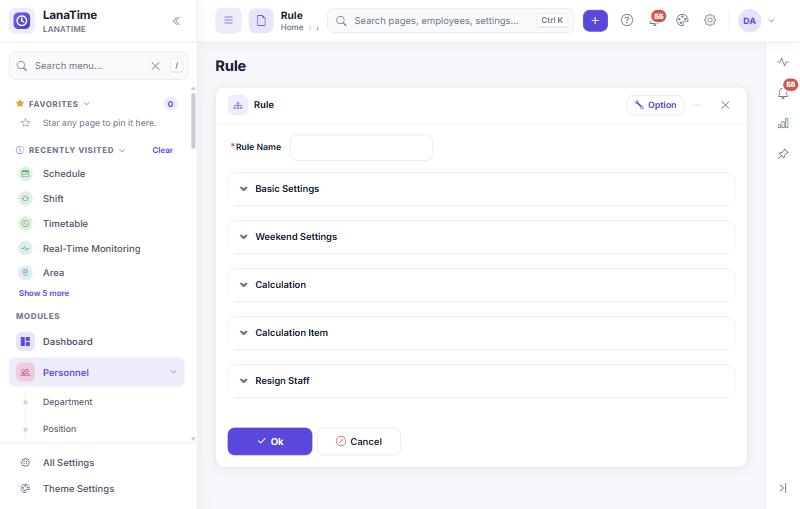
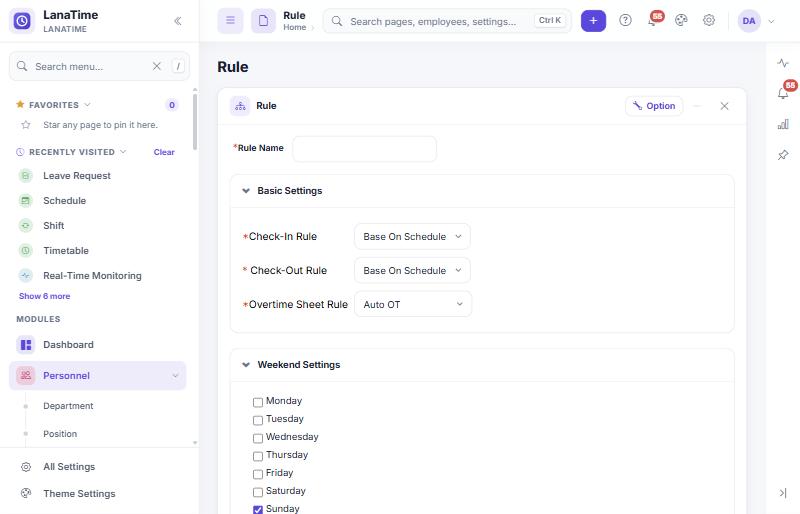
Basic Settings
| Setting | Choices |
|---|---|
| Check-In Rule | Base On Schedule (use the punch inside the check-in window) or First Checkin (the first punch of the day). |
| Check-Out Rule | Base On Schedule or Last Checkout (the last punch of the day). |
| Overtime Sheet Rule | Auto OT (overtime is counted automatically) or Not OT. |
Weekend Settings
Tick the weekday(s) that are the weekend. When you tick Saturday, you can choose which Saturdays: 1st, 2nd, 3rd, 4th and/or 5th Saturday of the month (leave all unticked for every Saturday). Work on a weekend day counts as weekend overtime, not as a normal day.
Calculation
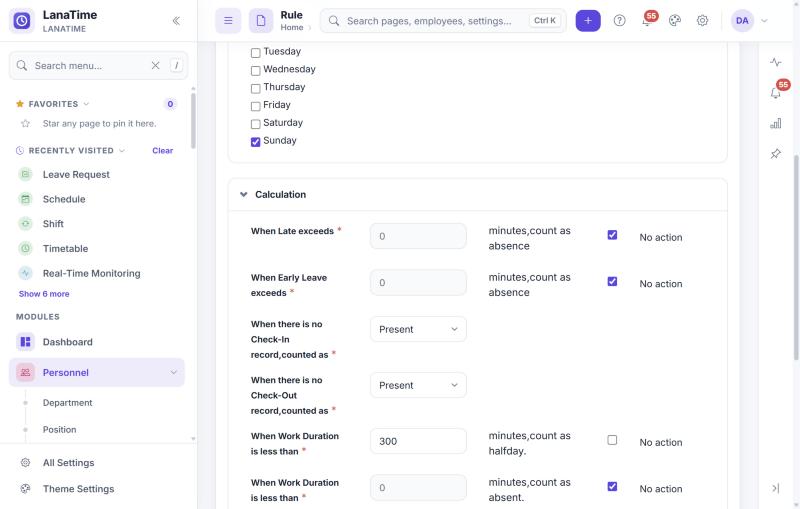
| Setting | Effect |
|---|---|
| When Late exceeds … minutes, count as absence | A late arrival longer than this makes the day absent. Ticked No action = off. |
| When Early Leave exceeds … minutes, count as absence | Same for leaving early. |
| When there is no Check-In record, counted as | Late (for the minutes you enter), Absent or Present. |
| When there is no Check-Out record, counted as | Early leave (for the minutes you enter), Absent or Present. |
| When Work Duration is less than … minutes, count as halfday | A short day counts as a half day. The sample value is 300 minutes (5 hours). |
| When Work Duration is less than … minutes, count as absent | A very short day counts as absent. |
| Early leave exceeds … times, days mark as absent for | When a person leaves early this many times, the next working day is marked Halfday or Fullday absent (or No action). The count runs over the period you calculate; see the late and early count rule. |
| Late exceeds … times, days mark as absent for | Same for late arrivals. This produced the 1/2 in the worked example. |
| Min OverTime / Max OverTime | Overtime below the minimum is not counted; overtime above the maximum is limited. The sample rule uses 60 and 0; test your values with one employee. |
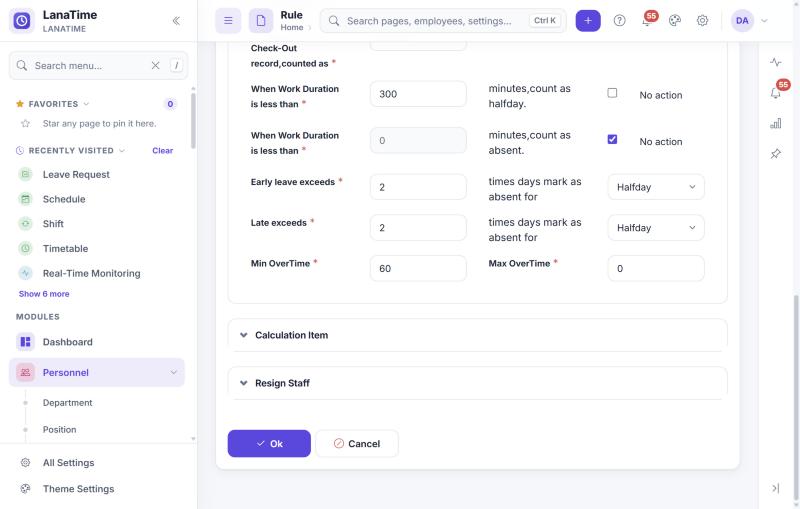
Calculation Item and Resign Staff
- Calculation Item: for each figure (Actual Attendance, Late, Early Leave, Leave, Absent, Overtime, No Check-In, No Check-Out, Present, Weekend, Holiday …) choose the Min.Unit, the unit (Hour, Minute, WorkDay or Minute (HH:MM)), the rounding (Round-down, Round-off, Round-up) and the Symbol In Report. These decide how figures look in reports, for example lateness in hours or minutes.
- Resign Staff › Display The Resign Staff: No (default) hides people who resigned from attendance pages such as manual punch, leave and the attendance report; Yes shows them.
Give a rule to people: on the Rule list select Set Rule, choose the people, pick the Employee Rule and select Ok.
Holidays
Open: Attendance › Holiday › Add
| Field | Meaning |
|---|---|
| Name Of Holiday | For example National Day. |
| Start Date, Duration | First day and number of days. |
| Company Name | All or one company. |
| Restricted to Group | Limit the holiday to one holiday group. Unrestricted holidays apply to everyone. |
Holiday Group manages the groups (Add Holiday Group) and who belongs to them (Set Holiday Group). A person sees the holidays of their group plus the unrestricted ones. Work on a holiday counts as holiday overtime.
Leave types
Open: Attendance › Leave Type › Add. A new installation contains Sick Leave, Casual Leave, Maternity Leave, Compassionate Leave, Annual Leave and Business Trip.
| Field | Meaning |
|---|---|
| Leave Type | The name. |
| Min.Unit, Unit, Round Off | The smallest amount counted and its unit (Hour, Minute or WorkDay), and whether amounts are rounded. |
| Symbol In Report | Shown in the attendance report, for example AL for Annual Leave, SL for Sick Leave. |
| Yearly Limit, Monthly Limit | Maximum leave of this type per year or month. |
| Carry Forward | Whether unused leave moves to the next year. |
| Applicable To | All, Female or Male. |
| Enable Weekend As leave | Whether weekend days inside a leave period count as leave. |
| Leave With Pay / Leave Without Pay | Used by payroll (leave formulas). |
Leave settings (entitlement policies)
Leave settings define yearly entitlements per leave type and assign them to employees: name and apply date; probation (applicable, duration in months); carry forward to next year and its maximum; monthly credit; carry forward based on a specific month or the hired date; and per leave type the number of days per year and Paid/Unpaid. Assign gives a setting to chosen employees. A Leave Balance report for employees exists at /userpages/leavebalancereport, but it is not in the employee menu either.
The Leave Settings page has no menu entry in LanaTime 7.5. It opens at the address /attendance/leavesettings on your LanaTime site (for example http://lanatime.yourcompany.local/attendance/leavesettings) for users whose role allows it.
Outdoor types
Open: Attendance › Outdoor Type. The kinds of work away from the office (the installation contains Inspection, Meeting, Official Duty, Training, Visit Customer and Other), each with a Min.Unit, Unit and Round Off like leave types.
Temporary weekend
Open: Attendance › Temporary Weekend. Gives chosen people an extra weekend day on chosen dates (for example a day off in exchange for weekend work). Add Temporary Weekend: choose the people, tick the dates in the calendar, Ok. Import Temporary Weekend loads them from .xlsx.
Related: How attendance is calculated · Leave and requests · Employee shift, rule and holiday group