
How attendance is calculated
What happens when you select Calculate, in the order LanaTime does it. Read this when a result surprises you: almost every "wrong" figure comes from one of the steps below.
From punches to results
- Punches arrive from devices, the mobile app and approved manual punches. You can see them in Attendance › Transactions.
- Calculate (on Attendance › Attendance Report, Attendance › Statistics Report, or Att Calculate on the Payroll Report) works through the chosen employees and, for each one, every day of the chosen period.
- For each person it first deletes that person's previous results for the period, then works out each day again from scratch.
- The results (one row per person, day and timetable) are stored. Reports, the dashboard figures, payroll and the calculated API read these stored results.
Results do not update on their own. Select Calculate again for the people and dates concerned after any of these:
- punches arrived late (device was offline, USB import, Upload Transactions Again);
- a leave, manual punch, schedule change or outdoor request was approved, rejected or revoked;
- a schedule, shift, timetable, rule, holiday or temporary weekend changed;
- an employee's rule, shift, holiday group, attendance start date or resignation changed.
Which days are calculated
- From the employee's Date Of Attendance Start (if set) to the resignation date (if the person resigned with attendance disabled). Days outside get no result at all.
- The employee's rule is the one on their record; if none is set, the Default rule.
Is it a working day, weekend or holiday?
- Holiday: a holiday of the person's holiday group, or a holiday not restricted to any group, covers the day.
- Weekend: the weekday is ticked in the rule's Weekend Settings; for Saturday, also which Saturdays (1st to 5th) if chosen.
- Temporary weekend: the person has a temporary weekend on that date.
- If a day is both a weekend and a holiday, it is shown as a holiday.
On weekends and holidays there is no lateness and no absence. If the person works, the time counts as weekend overtime or holiday overtime, and the day shows WP or HP instead of W or H.
Which timetable applies
For each day LanaTime looks for the timetable in this order and uses the first it finds:
- a temporary schedule for that person and date;
- the person's schedule (the shift given under Attendance › Schedule), by weekday for weekly shifts or by position in the cycle for day-cycle shifts;
- the shift on the employee record;
- if System › Master Settings › Auto Timetable is Enabled: the timetable whose check-in window contains the person's first punch of the day.
If none applies, the day has no working time. When a day has several timetables, LanaTime matches each one to the punch inside its check-in window, ignoring a punch that was already used as the previous day's check-out (night shifts).
Leave
- Only approved leave counts.
- Leave is applied on working days only: weekends and holidays are decided first.
- If a day has more than one leave record, only the first is used.
Late arrival and early leave
- Late = check-in after the timetable's check-in time plus its Late Arrival grace minutes.
- Early leave = check-out before the timetable's Check-out time minus its Early Out grace minutes.
- Which punch is the check-in and check-out depends on the rule's Basic Settings: Base On Schedule uses the punch inside the timetable's window; First Checkin / Last Checkout use the first and last punch of the day.
- A punch outside every check-in or check-out window is not used. An out punch before the Check-Out Start Time therefore counts as a missing check-out, not as a short day.
Absence, half days and missing punches
These come from the rule's Calculation section:
- No punch at all on a working day (and no leave) → absent.
- No check-in → counted as Late (for the minutes set), Absent or Present, as the rule says. Same for no check-out (Early leave, Absent or Present).
- Worked time below the half day minutes → half day; below the absent minutes → absent.
- Late (or early) by more than the rule's limit → absent, if that option is switched on.
The late and early count rule
"Late exceeds N times, days mark as absent for Halfday/Fullday" works like this:
- LanaTime counts the late days within the period you are calculating (not per calendar month).
- When the count reaches N, the half or full day is applied to the next working day, even if the person was on time that day, and the count starts again from zero.
- Because the count depends on the period, calculating 1-31 October and 15-31 October can give different results for the same day. Always calculate whole payroll periods.
Worked example
These results were produced by LanaTime 7.5 for a sample employee. The timetable is 08:00 to 17:00 with no grace minutes, and the rule says "Late exceeds 2 times → Halfday".
| Date | In | Out | Symbol | Why |
|---|---|---|---|---|
| Mon 10 Aug 2026 | 08:35 | 17:05 | >P | Present, late by 35 minutes (1st late day). |
| Tue 11 Aug 2026 | 08:40 | 17:05 | >P | Present, late by 40 minutes (2nd late day: the count reaches 2). |
| Wed 12 Aug 2026 | 07:55 | 17:05 | 1/2 | On time, but this is the next working day after the limit was reached, so the rule's half day is applied here: absent 0.5 and the count starts again. |
| Thu 13 Aug 2026 | 07:55 | 17:05 | P | Present. |
| Fri 14 Aug 2026 | 07:55 | 17:05 | P | Present. |
In the same report another sample employee shows AL on 10 and 11 August: approved Annual Leave on two working days.
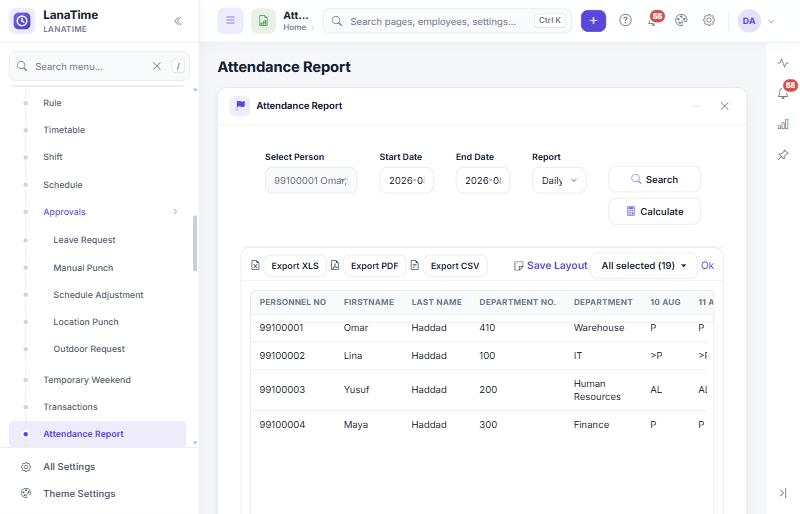
>P, >P, 1/2, P, P. Third row: AL on the first two days. Sample data.Overtime
- On a working day, overtime comes from the timetable's Auto OT (Check-In Early) and Auto OT (Check-Out Delay) options, each with a minimum number of minutes.
- The rule's Overtime Sheet Rule must be Auto OT for automatic overtime; Min OverTime and Max OverTime limit it.
- Work on a weekend or holiday is weekend or holiday overtime.
- Reports show Normal OT, Weekend OT and Holiday OT separately; payroll prices them with the matching OT formula.
Units, rounding and seconds
- Each figure (late, early leave, absent, overtime, leave …) is shown in the unit, minimum unit and rounding set in the rule's Calculation Item section (hour, minute, workday or HH:MM). Two rules can therefore show the same day differently.
- When System › Master Settings › Calculation including seconds is No, the seconds of punches are ignored.
Report symbols
The symbols are set per rule (Calculation Item › Symbol In Report) and per leave type. The values below are the ones a new installation uses.
| Symbol | Meaning | Symbol | Meaning |
|---|---|---|---|
P | Present | A | Absent |
> | Late (shown with the day, e.g. >P) | < | Early leave |
[ | No check-in | ] | No check-out |
+ | Overtime | 1/2 | Half day |
W | Weekend (WP: worked on a weekend) | H | Holiday (HP: worked on a holiday) |
V | Leave (general) | AL SL CL ML COL BT | Annual, Sick, Casual, Maternity and Compassionate Leave, Business Trip |
The Attendance report also prints the legend for the leave types under the grid.
Why two reports can disagree
Three pages calculate attendance: Attendance Report, Statistics Report and Payroll Report (Att Calculate). Each has its own copy of the calculation and all of them write the same stored results, so the figures you see are from whichever page calculated last. The copies are almost identical, but not quite (for example, the Statistics Report treats time beyond the shift on a late day differently in one case). For consistent figures, choose one page for calculating, and calculate whole periods.
Investigating a wrong result
- Punches. In Attendance › Transactions, filter by the person and date. Are all punches there, with the right times? If not, see Missing punches.
- Day type. Is the day a weekend (rule), a holiday (holiday and the person's holiday group) or a temporary weekend?
- Timetable. In Attendance › Schedule, select the person and look at Schedule TimeTable details for the date. Is there a temporary schedule? Is the expected timetable there?
- Windows. Do the punches fall inside the timetable's check-in and check-out windows? A punch outside every window is ignored.
- Requests. Is there leave, a manual punch or an outdoor request for the date, and is it Approved?
- Rule. Which rule does the person have, and what do its Calculation settings say (grace, half day, count rules)?
- Recalculate the person for the whole period and check again. Still wrong? Note the person, date, expected and actual result, and contact your administrator.
Known limitations
The following behaviour exists in LanaTime 7.5. Administrators can switch on corrections for some of it (see Calculation engine settings).
- "Nth Saturday" weekends (for example 2nd and 4th Saturday): in the standard calculation the Saturdays are counted from the start date of the period you calculate, not from the start of the month. Calculate from the 1st of a month, or ask your administrator about the corrections.
- Holidays stored with a time of day (for example imported ones), and a holiday that starts the day after another one ends, may not be recognised by the standard calculation.
- Half days on temporary schedules are recorded with absent 0 instead of 0.5 in the standard calculation.
- The late/early count runs over the calculated period (see above).
- Only the first leave of a day is used.
Related: Timetables, shifts and rules · Dashboard and reports · Troubleshooting